

Manage your billing
Manage billing details and understand low-balance behavior so recording isn’t interrupted.
Your Recall.ai billing account manages your payment methods, invoices, and company billing information.
How you manage billing depends on your plan:
- Self-serve (pay-as-you-go): Manage your payment methods and billing information through the Recall dashboard.
- Monthly or managed: Your account uses a separate billing portal. Contact [email protected] for access or help updating your billing information.
Open your billing portal
Pay-as-you-go plan
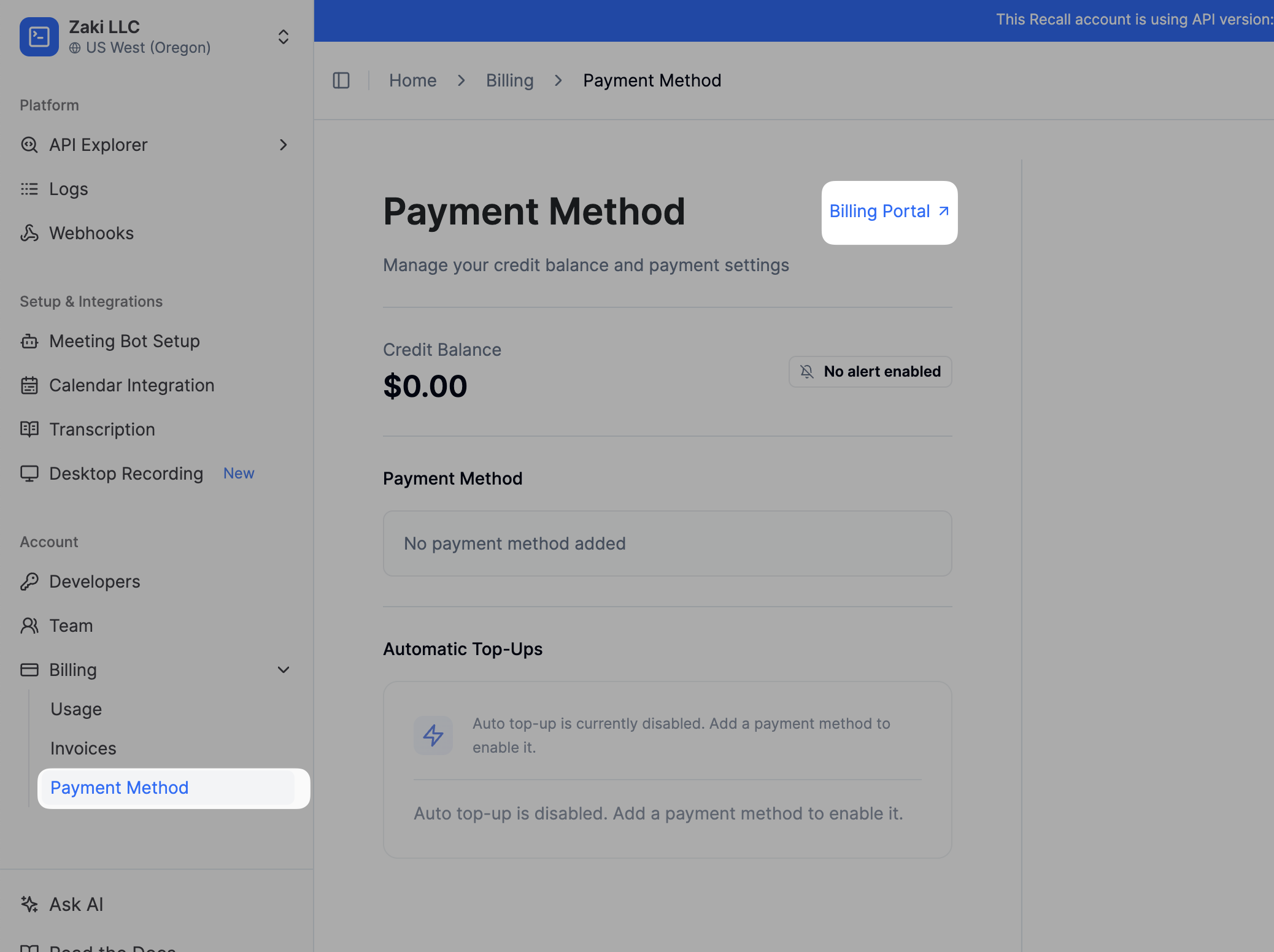
- Sign in to your Recall dashboard.
- In the sidebar, go to Billing → Payment Method.
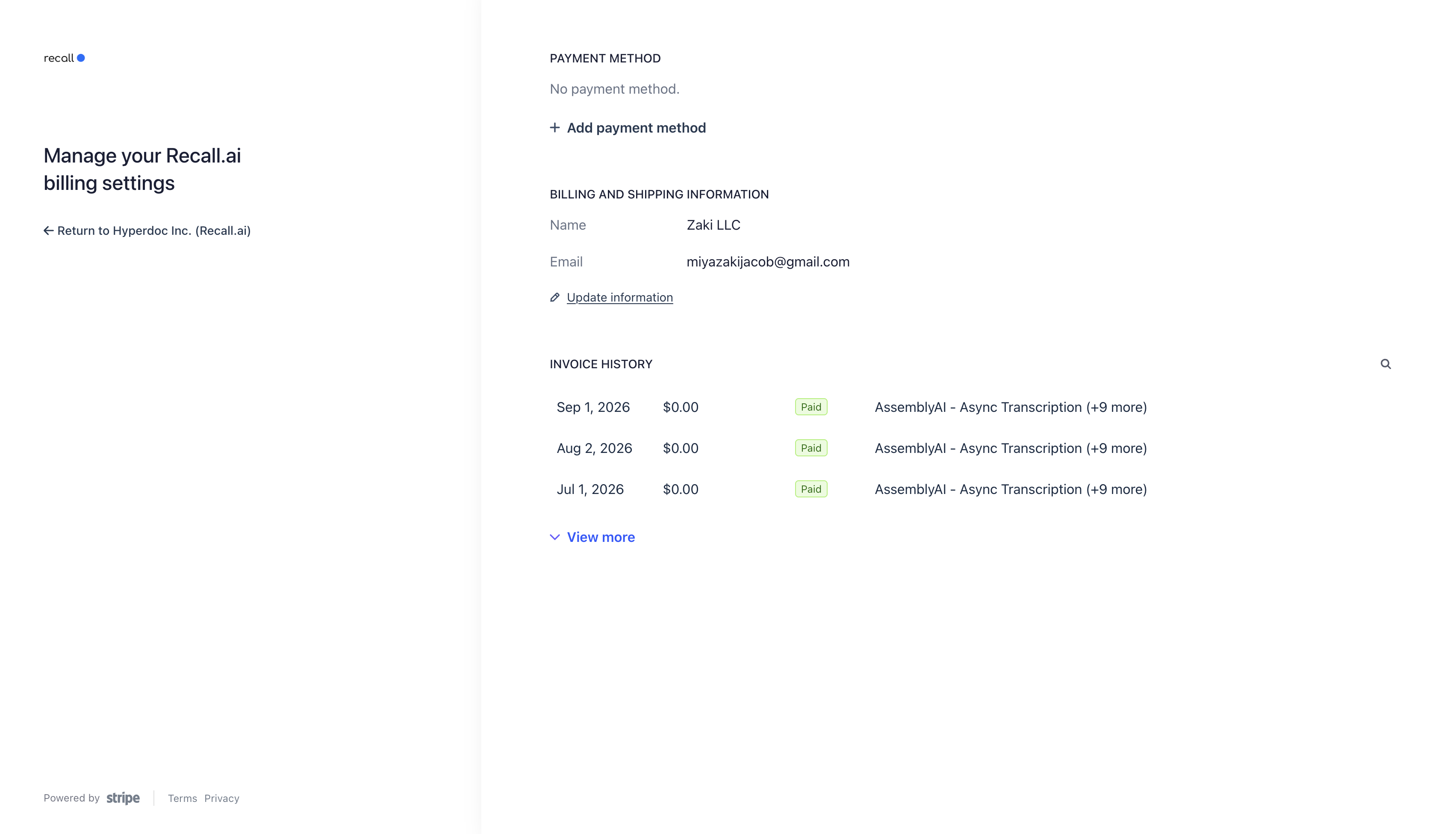
- Click Billing Portal to open Stripe.
You must have the Admin role on your Recall account to open the billing portal from the dashboard. If you do not have this role, ask an account admin to make the changes.
Monthly or managed plans
Monthly and managed accounts use a different billing portal from self-serve accounts. Open the Stripe billing portal and sign in using the billing email associated with your account. There's only one billing email associated with your account and it may be different from the email you use to sign in to Recall.ai.
If you don’t know your billing email, contact [email protected] with your workspace name and region.
Update your billing details
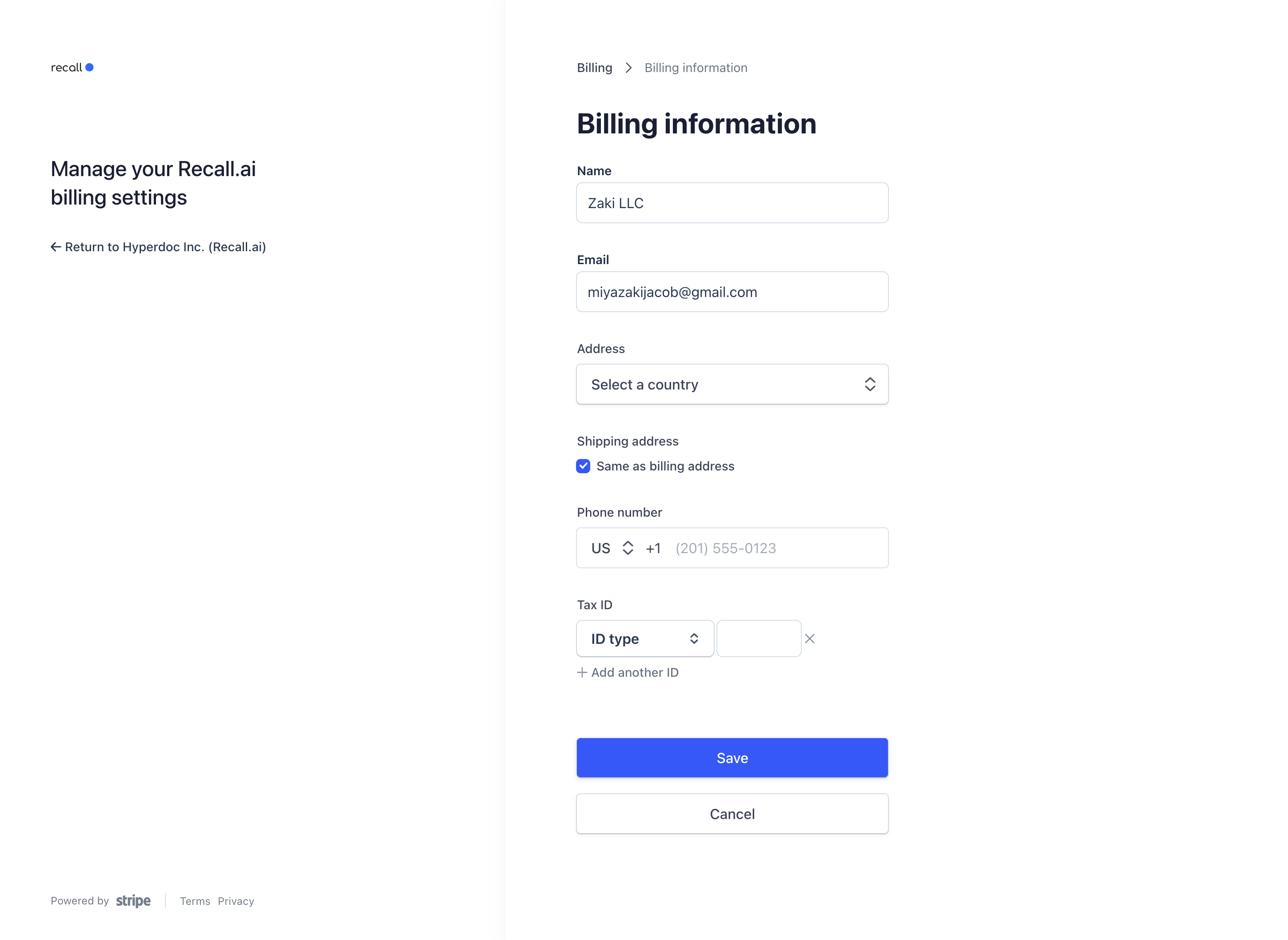
For self-serve accounts, open Billing → Payment Method → Billing Portal in the Recall dashboard. In the portal, you can manage:
- Payment methods: Add a new payment method and set it as the default for future payments and automatic credit top-ups.
- Billing information: Update your billing email, company name, billing address, tax ID and other available details. Your billing email is used for invoices, payment receipts, and other billing communications.
Don't forget to save your changes before leaving the portal.
For monthly or managed accounts, contact [email protected] for access to the correct billing portal or help updating your details.
View and download invoices
In the Recall dashboard, go to Billing → Invoices to view your invoices.
You can also view and download available invoices from the billing portal’s invoice history.
Manage your credit balance for self-serve accounts.
Self-serve accounts use a prepaid credit balance to pay for usage.
Automatic top-ups
Auto-top-up is enabled automatically when you add a valid payment method. It purchases credits automatically whenever your balance falls below the configured threshold.
Note that if your credit balance is below the default configured threshold (e.g., $5) when you first add a payment method, you will automatically be charged the default top-up amount (e.g., $20). If this is unexpected, reach out to [email protected] with a screenshot of the receipt for a refund.
One-time payments
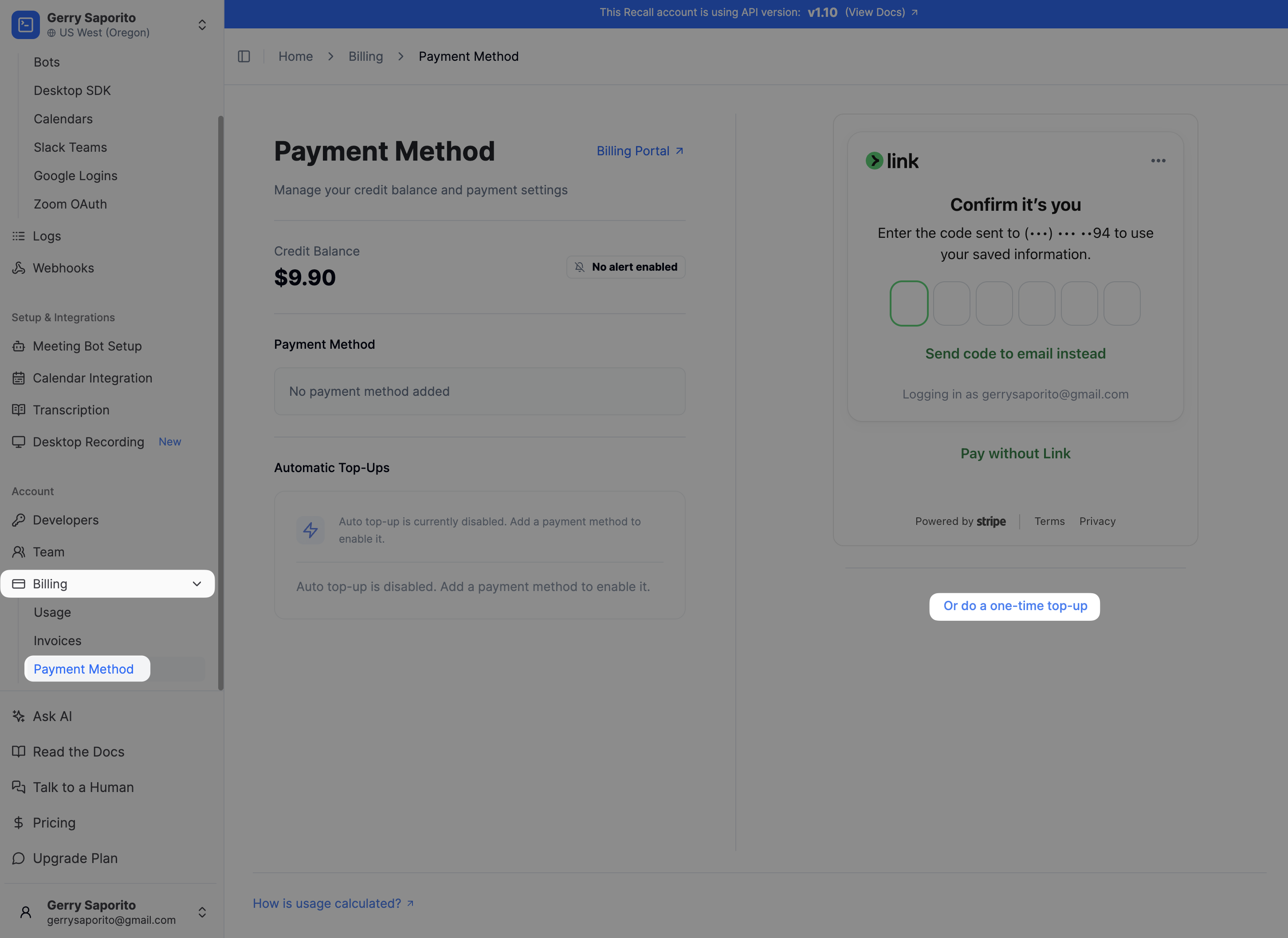
If you don't want to enable auto-top-ups, you can also create a one-time credit topup. This can be done in the dashboard.
FAQs
How do I correct an existing invoice?
Updating your billing information applies to future invoices. It does not automatically update invoices that have already been finalized.
To correct the company name, billing address, email address, or other details on an existing invoice, email [email protected] with:
- Your company or account name.
- The invoice number.
- The details that need to change.
- The correct replacement details.
The finance team will review your request and help with the correction.
Can I consolidate billing across regions?
If you use Recall.ai in multiple regions and want to consolidate billing across those regions, contact [email protected].
Include your company name, the main region you want to use, and the workspace names you want included. The support team will help you arrange consolidated billing.
Do I need to update billing details in every workspace?
Multiple workspaces share one billing account. If your workspaces share a billing account, you only need to update its billing details once.
Workspaces with separate billing accounts need separate updates.
Does changing my billing email change my sign-in email?
No. Changing your billing email does not change the email address you use to sign in to Recall.
What happens if my credit balance drops below $0?
On the PAYG plan - Meeting Bots and Desktop Recording SDK recordings that are already actively recording will continue until the meeting ends. You will not be able to deploy new bots or create new Desktop Recording SDK uploads until you add credits.
On a managed plan - you will accrue overages for new deployments.
What if I cannot access the portal or edit a billing field?
For self-serve accounts, check that you have the Admin role on your Recall account. If you do not, ask an account admin to make the changes.
If you still cannot access the portal, or a field you need to change is unavailable, contact [email protected].
For monthly or managed accounts, contact support for access to the correct billing portal.
Does my prepaid credits and contract rates apply across regions?
Prepaid credits and contract rates apply across regions. Please contact [email protected] before migrating so we can properly transfer your account and apply the same billing details in your new region. Include your workspace name along with the original and new regions.
Updated 13 days ago