

Desktop Recording SDK Real-time Transcription
Set up Desktop SDK real-time transcription so your app can receive live speaker-attributed transcript events during a meeting.
Real-time transcription enables your desktop app to receive live, speaker-attributed transcript data as meetings happen. Instead of waiting for a recording to finish and processing it asynchronously, you get transcript words and sentences streamed directly to your app within seconds of being spoken.
The same transcription configuration works for local and Raw Media Desktop SDK recordings.
Transcription Provider Support
| Speech-to-text provider | Supported | Provider field name |
|---|---|---|
| Recall.ai Transcription | Yes | recallai_streaming |
| ElevenLabs | Yes | elevenlabs_streaming |
| AssemblyAI v3 | Yes | assembly_ai_v3_streaming |
| Deepgram | Yes | deepgram_streaming |
| Gladia v2 | Yes | gladia_v2_streaming |
| Speechmatics | Yes | speechmatics_streaming |
| AWS Transcribe | No | — |
| Rev | No | — |
Quickstart
The Desktop Recording SDK supports Recall.ai Transcription, ElevenLabs, AssemblyAI v3, Deepgram, Gladia v2, and Speechmatics for real-time transcription.
Add your API keys to the Recall transcription credential dashboardOnce you've created API keys for AssemblyAI or Deepgram, you need to add them to Recall. Add them at the following links depending on your Recall region:
Recall.ai transcription setup
There isn't any configuration or additional setup required to start using Recall.ai transcription. Use the request below to create a desktop recording that transcribes in real time with Recall.ai.
recallai_streamingonly supportsmode: prioritize_low_latency.
Use the request below to create a desktop recording that transcribes in real time with Recall.ai. Replace YOUR_RECALL_REGION with your Recall region (either us-west-2, us-east-1, eu-central-1, or ap-northeast-1). Replace YOUR_API_KEY with an API key with a Recall API key.
const url = 'https:/YOUR_RECALL_REGION.recall.ai/api/v1/sdk_upload/';

const options = {
  method: 'POST',
  headers: {
    accept: 'application/json',
    'content-type': 'application/json',
    Authorization: 'YOUR_API_KEY'
  },
  body: JSON.stringify({
    recording_config: {
      transcript: {
        provider: {
          recallai_streaming: {}
        }
      },
      realtime_endpoints: [
        {
          type: 'desktop_sdk_callback',
          events: ['transcript.data', 'transcript.partial_data']
        }
      ]
    }
  })
};

fetch(url, options)
  .then(res => res.json())
  .then(json => console.log(json))
  .catch(err => console.error(err));
AssemblyAI transcription setup
- Create an account with AssemblyAI.
- Link a credit card to your AssemblyAI account. Assembly gives you free credits when you sign up, but, you still must have a credit card on file with Assembly in order to use real-time transcription through the Desktop SDK. You do not need to add funds, but the card must be on file.
- Create a new API key from the Assembly dashboard and add it to the Recall Transcription dashboard.
Sample Assembly request
Choose the correct Assembly model!Use
assembly_ai_v3_streamingnotassembly_ai_streamingwhen adding Assembly to your Create SDK Upload request. Transcription on the Desktop Recording SDK will fail if you chooseassembly_ai_streaming.
Use the request below to create a desktop recording that transcribes in real time with Assembly. Replace YOUR_RECALL_REGION with your Recall region (either us-west-2, us-east-1, eu-central-1, or ap-northeast-1). Replace YOUR_API_KEY with an API key with a Recall API key.
const url = 'https:/YOUR_RECALL_REGION.recall.ai/api/v1/sdk_upload/';

const options = {
  method: 'POST',
  headers: {
    accept: 'application/json',
    'content-type': 'application/json',
    Authorization: 'YOUR_API_KEY'
  },
  body: JSON.stringify({
    recording_config: {
      transcript: {
        provider: {
          assembly_ai_v3_streaming: {
             // include any supported parameters for Assembly's real-time models
             // https://www.assemblyai.com/docs/api-reference/streaming-api/streaming-api
          }
        }
      },
      realtime_endpoints: [
        {
          type: 'desktop_sdk_callback',
          events: ['transcript.data', 'transcript.partial_data']
        }
      ]
    }
  })
};

fetch(url, options)
  .then(res => res.json())
  .then(json => console.log(json))
  .catch(err => console.error(err));
Deepgram transcription setup
- Create an account with Deepgram.
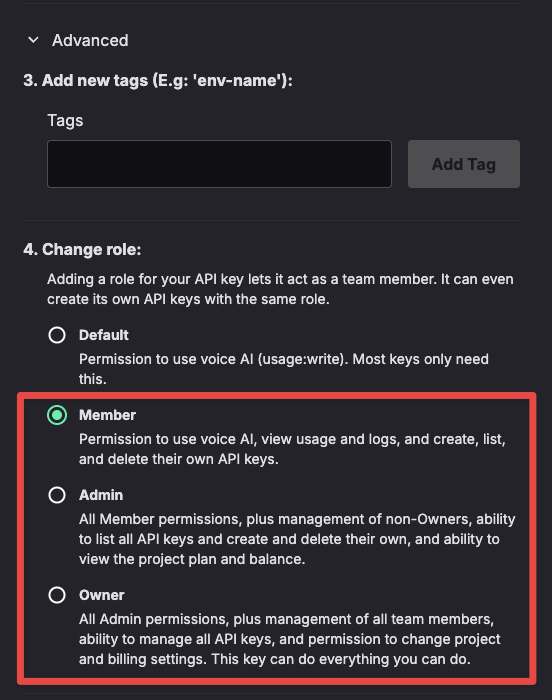
- Create a new API key from the Deepgram dashboard. When creating the key, open the "Advanced" tab and give the API key Member, Admin, or Owner role. Transcription will fail with the Default role.
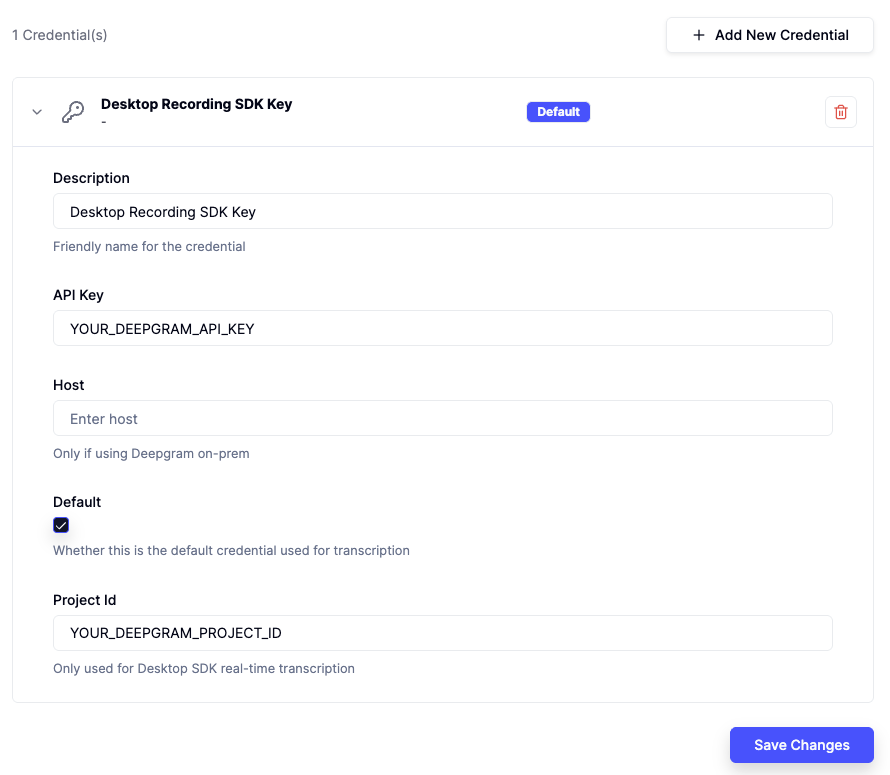
- Add your Deepgram API key to the Recall Transcription dashboard. Make sure to mark this API key as default, and to include your Deepgram Project ID.
Sample Deepgram request
Use the request below to create a desktop recording that transcribes in real time with Deepgram. Replace YOUR_RECALL_REGION with your Recall region (either us-west-2, us-east-1, eu-central-1, or ap-northeast-1). Replace YOUR_API_KEY with an API key with a Recall API key.
const url = 'https:/YOUR_RECALL_REGION.recall.ai/api/v1/sdk_upload/';

const options = {
  method: 'POST',
  headers: {
    accept: 'application/json',
    'content-type': 'application/json',
    Authorization: 'YOUR_API_KEY'
  },
  body: JSON.stringify({
    recording_config: {
      transcript: {
        provider: {
          deepgram_streaming: {
            // include any supported parameters for Deepgram's real-time models
            // https://developers.deepgram.com/reference/speech-to-text/listen-streaming
          }
        }
      },
      realtime_endpoints: [
        {
          type: 'desktop_sdk_callback',
          events: ['transcript.data', 'transcript.partial_data']
        }
      ]
    }
  })
};

fetch(url, options)
  .then(res => res.json())
  .then(json => console.log(json))
  .catch(err => console.error(err));
Speechmatics transcription setup
- Create an account with Speechmatics.
- Create a new API key from the Speechmatics dashboard and add it to the Recall Transcription dashboard.
Sample Speechmatics request
Use the request below to create a desktop recording that transcribes in real time with Speechmatics. Replace YOUR_RECALL_REGION with your Recall region (either us-west-2, us-east-1, eu-central-1, or ap-northeast-1). Replace YOUR_API_KEY with an API key with a Recall API key.
const url = 'https:/YOUR_RECALL_REGION.recall.ai/api/v1/sdk_upload/';

const options = {
  method: 'POST',
  headers: {
    accept: 'application/json',
    'content-type': 'application/json',
    Authorization: 'YOUR_API_KEY'
  },
  body: JSON.stringify({
    recording_config: {
      transcript: {
        provider: {
          speechmatics_streaming: {
             language: en // language is a required parameter
             // include any supported parameters for Speechmatics real-time models
             // https://docs.speechmatics.com/api-ref/realtime-transcription-websocket
          }
        }
      },
      realtime_endpoints: [
        {
          type: 'desktop_sdk_callback',
          events: ['transcript.data', 'transcript.partial_data']
        }
      ]
    }
  })
};

fetch(url, options)
  .then(res => res.json())
  .then(json => console.log(json))
  .catch(err => console.error(err));
FAQs
How to get the recording ID on the transcript.data event when using real-time endpoint webhooks?
If you're not using the desktop_sdk_callback and instead using the webhook real-time endpoint config, the recording_id will not be populated on the transcript.data event. Instead, it will display a zero UUID: 00000000-0000-0000-0000-000000000000
To correlate the transcript utterance on your side, pass a unique identifier in the query parameters, (e.g. https://yourwebhook.com/api/webhook?queryParam=1234, when initializing the real-time webhook endpoint. Recall will call this endpoint and include the query parameter you set, allowing you to extract the query parameter and use it to identify which recording it's correlated to.
Will transcription data ever hit Recall's servers if Zero Data Retention is enabled?
No, transcript data with ZDR enabled will never touch Recall's servers. All data is processed on-device.
Accessing provider-specific fields from the speech-to-text transcription provider
Provider data is not exposed for Recall.ai transcription or when
diarization.use_separate_streams_when_available: true
If you need access to provider-specific fields or features that are not exposed in Recall’s normalized real-time transcript events, you can subscribe to the raw transcription output from the underlying provider.
To receive the provider data events, add transcript.provider_data to the events list in recording_config.realtime_endpoints. When enabled, Recall will deliver the raw transcription data returned by the provider, allowing your application to read provider-specific fields that may not be included in Recall’s standard transcript events.
The response of the transcript.provider_data varies by provider.
Updated about 1 month ago