

Troubleshooting: Google Meet Waiting Room Visibility
Follow this guide when a user says they don't see the bot in the Google Meet waiting room.
If your bot is saying it's in the waiting room but your user doesn't see it, it is most likely because Google Meet Host Controls are enabled and the user is not the host of the meeting.
When Host Controls are enabled in Google Meet, only the meeting host and designated co-hosts can see and admit participants from the waiting room. Other participants (even those on the same Google Workspace domain as the host) will not see the bot when it arrives in the waiting room. This happens most commonly when the meeting was scheduled and organized by a third party, for example via a calendar automation or an executive assistant.
The following guide is intended to help you and your users understand how these Google Meet settings work, and how they can be fixed to allow the bot to join.
How to demonstrate this to your users
Waiting room visibility can be a very frustrating issue for your users, since to them it looks like the bot is simply not showing up to the meeting. It can be helpful to give users visual evidence that the bot is actually showing up to the waiting room, and that they're just unable to see it.
Ask the user to open up a new Google Meet by typing meet.new into their web browser. This will open up a brand new Google Meet where they're guaranteed to be the host (since they created the meeting). The quickest way to confirm that the user is the host is to have them check that there's a lock icon at the bottom right of the window, since this icon indicates that they have Host Controls for the meeting.
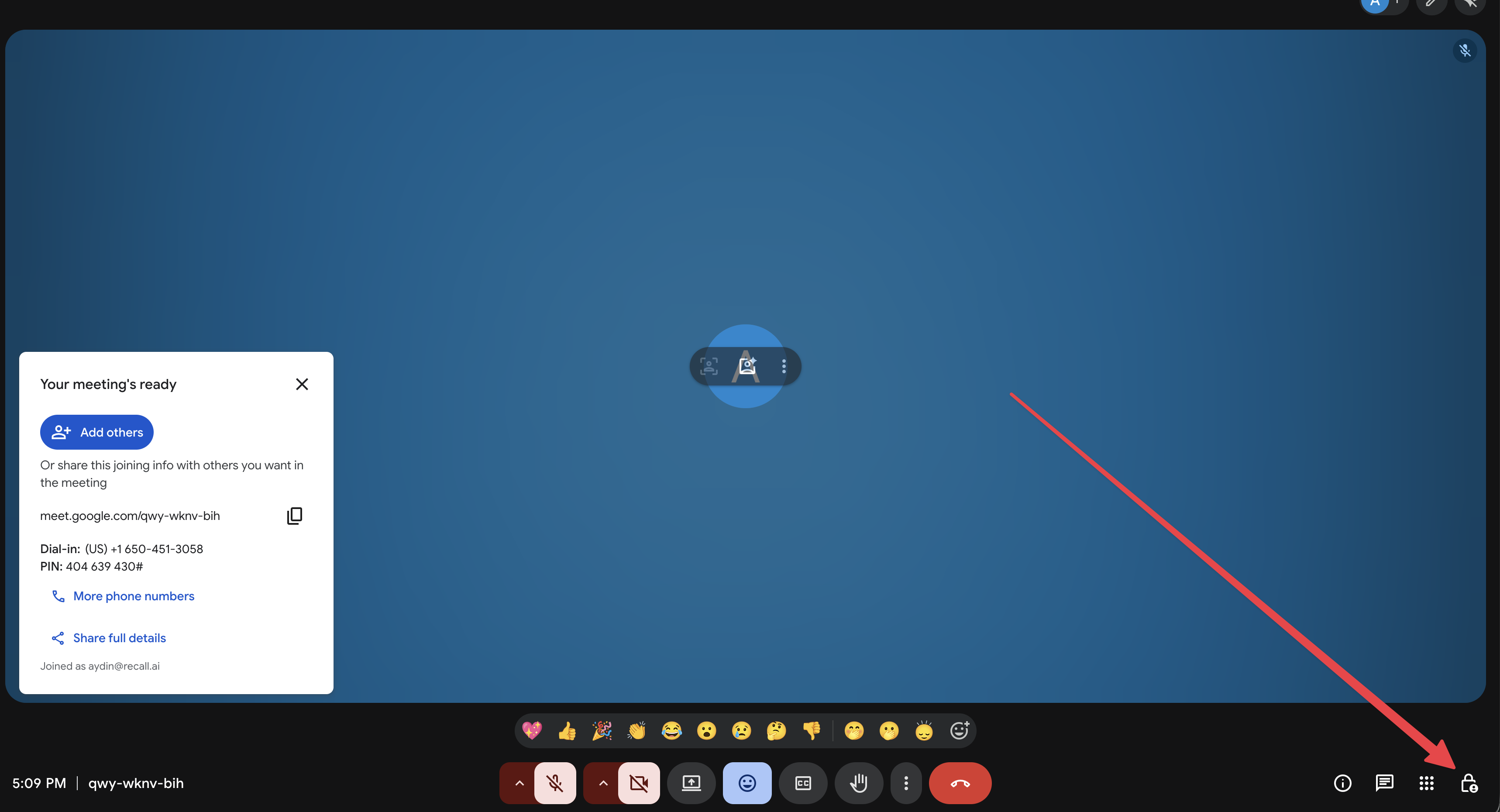
Have the user send a bot to this meeting. They will see the bot enter the waiting room since they are the host of the meeting.
Now, ask the user to join one of the meetings where the bot wasn't seen in the waiting room. They should notice that they do not have host controls in this meeting. Have the user open an incognito browser window and try to join the same meeting from this window. They'll notice that they don't see the incognito user's request to be admitted. This will confirm that the user is not the host of that meeting, and that they do not have privileges to admit people from the waiting room.
Common question: why are other users able to join this meeting, but not the bot?`
Google Meet allows users to skip the waiting room if they're part of the host's organization, or if they're in the invitees list of the calendar event associated with the meeting. If the user reports that other participants were able to join without issue, it's likely that they were in the same organization as the host, or were added to the calendar event, and were therefore treated as trusted participants who can join directly.
Since the bot typically fulfills neither of these criteria, Google treats it as an external participant that needs to be admitted from the waiting room by the host or a co-host.
Find the Meeting Organizer
Now that you've confirmed your user isn't the host, the next step is figuring out who the actual host is.
The host of a Google Meet is determined by the organizer field on the underlying calendar event. This is often not who you'd expect: scheduling tools, service accounts, and executive assistants frequently create events on behalf of others, making them the organizer even though they'll never join the call.
If the organizer isn't in the call (and no co-hosts have been assigned), no attendee has the ability to admit the bot from the waiting room. The bot can try to join, but nobody will see any indication that it's there.
If you have Google Calendar API access
If your application has read access to the Google Calendar API for this calendar (via the Recall calendar integration or your own calendar integration), query the calendar event directly and inspect the organizer field:
{
  "organizer": {
    "email": "[email protected]",
    "displayName": "Scheduling Service",
    "self": false
  },
  "attendees": [
    { "email": "[email protected]", "responseStatus": "accepted" },
    { "email": "[email protected]", "responseStatus": "accepted" }
  ]
}
In this example, the organizer ([email protected]) is not listed as an attendee. If that account isn't joining the Google Meet call, no one in the meeting can admit the bot from the waiting room.
What to check:
- Is the
organizer.emaila real person who will join the meeting? Or is it a service account, shared calendar, or a person (like a recruiter) who won't attend? - Is the organizer listed in the
attendeesarray? If not, they may not even be aware they're the host. - Does the organizer's email domain match what you expect? If a third party created the event, the organizer might be on a different domain entirely.
If you don't have calendar API access
Ask the user to open the event in Google Calendar and look for an Organizer field in the event details. If no organizer is visible, the event was likely created programmatically. In this case, you'll need to have the user check with their IT admin or whoever manages their scheduling integration to find out which account is creating these calendar events. The answer is typically a service account or a specific user whose OAuth credentials the integration is using.
Fix the Problem
The right fix depends on how much control you have over how meetings are created. If you need a solution that works regardless of who creates the meeting, start with Option 1.
Option 1: Use a Signed-in Google Meet bot
When a bot is signed into a Google account and that account's email address is added to the calendar invite as an attendee, the bot will skip the waiting room and join the meeting directly.
The only change required from your customers is adding the bot's email to the calendar invite, so we recommend it over the other options listed below if possible.
See our guide to signed-in Google Meet bots for setup instructions.
Option 2: Change how Meetings are Created
If meetings are being created programmatically and the organizer is a service account or a non-attending user, the most direct fix is to ensure the event is created on the calendar of someone who will actually attend the meeting. This makes that person the organizer (and therefore the host), giving them the ability to admit the bot from the waiting room.
In practice, this usually means changing which user's OAuth credentials the scheduling integration uses to create events. For example, if an ATS is creating interview events using a service account, switching it to create events using the interviewer's account instead would make the interviewer the host.
Option 3: Pre-assign co-hosts
Meeting co-hosts are also able to to admit participants from the waiting room. The meeting organizer can pre-assign co-hosts when creating or editing the calendar event by doing the following:
- Open the calendar event
- Click on the Google Meet video conferencing options
- Enable Host Management
- Add participants as Co-hosts
Up to 25 co-hosts can be assigned per meeting. However, co-host assignment is currently only available through the Google Calendar UI, and cannot be set via the Google Calendar API. This makes it impractical for programmatically-created meetings.
Updated about 1 month ago