

Zoom: Troubleshooting whether the bot was in the waiting room
Use a Zoom meeting link and start time to check whether a bot waited or joined the call.
Use this guide if a Recall Meeting Bot reports a Waiting Room timeout and someone remembers seeing the bot in the Zoom call or says it never appeared in the lobby.
Zoom treats the bot as another participant. If the bot lands in the Zoom Waiting Room, it waits outside the call until it’s admitted, denied entry, or leaves. Recall logs the bot’s attempt to join and Zoom’s report tracks waiting and time in the call as separate entries.
After the meeting, you can use Zoom’s Participants report to check whether the bot was waiting when expected and whether it entered the call.
Can I trust the bot’s status history?Zoom sends explicit meeting-state events, so you can confidently rely on the bot’s status history to see whether it entered the call (indicated by the first
in_call_not_recordingbot status change event).A Waiting Room timeout means the bot reached its wait limit and left without being admitted. This is expected behavior and you can share a screenshot from the dashboard with the user to explain this.
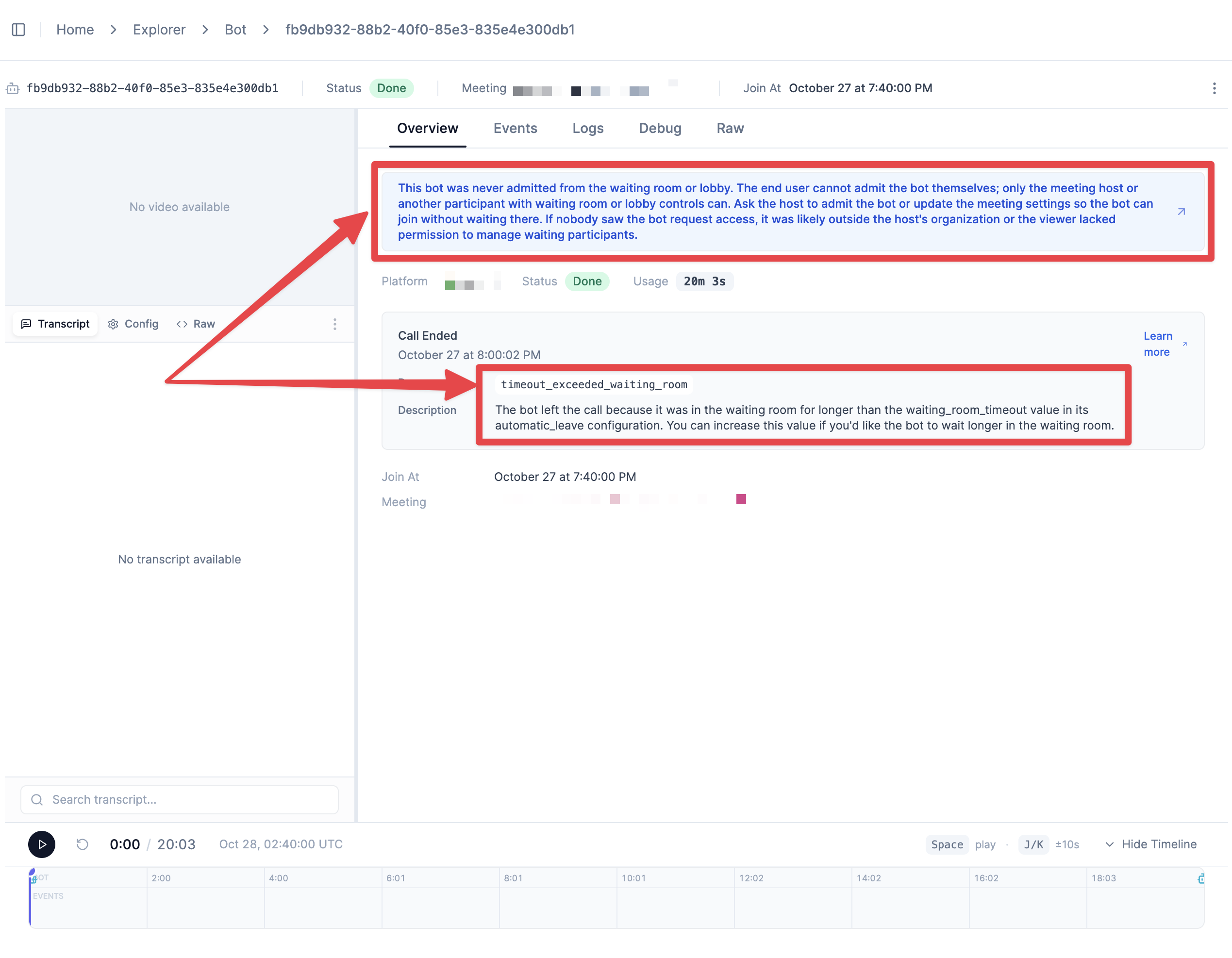
How to confirm the bot entered the waiting room
Even if the bot never joined the call, its Waiting Room entry can appear in Zoom’s Participants report. Use the entry’s Join time and Leave time to check whether the bot was waiting when you expected it.
Prerequisites
- Paid Zoom plan. The meeting must have been hosted on a Zoom Pro, Business, Education, or Enterprise account. Upgrading the account after the meeting won’t create a report for it.
- Report access. A host with a Zoom Meetings license can open reports for meetings they hosted while licensed. They can schedule the meeting before receiving the license. An owner, admin, or user with account-wide Usage reports access in the host’s Zoom account can also look up the report.
- Report availability. Zoom starts logging Waiting Room activity when the host starts the meeting. For a bot that arrives early, Zoom records the wait only if the bot is still waiting when the meeting starts. Allow up to 30 minutes after the meeting ends for the full report to appear. Zoom keeps meeting reports for up to 15 months.
If the Participants report is unavailable, you can still check the bot’s status history in Recall to confirm whether it timed out.
How to check Zoom's Participants report for a meeting
Before heading to Zoom, you can get the meeting URL and start time from the bot explorer in the Recall Dashboard.
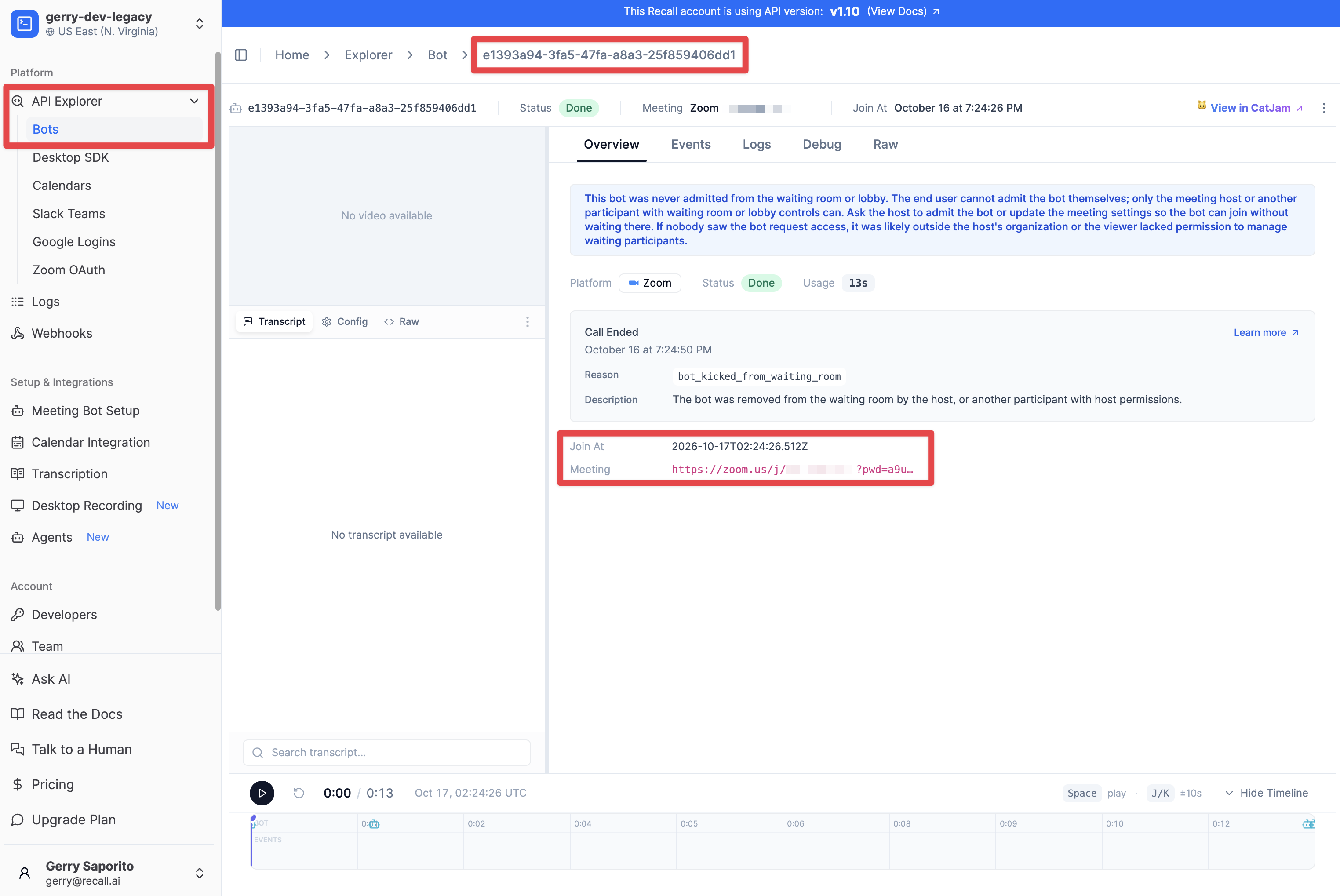
Then ask the host or a Zoom admin with reporting access to look up the meeting using the link and start time.
- Find the Zoom Usage reports
- Hosts: Open Zoom Usage reports, or go to My account → Reports → Meetings & Webinars → Usage reports.
- Admins: Open Zoom Admin Usage reports, or go to Admin Center → Reports → Usage reports.
-
Open Meeting and webinar history. Search by meeting ID and select the occurrence with the correct start time. In a standard Zoom link, the ID is the number after
/j/.Can’t find the meeting in Zoom?Confirm the meeting link and time with the host, and ask whether the meeting started.
- The meeting never started. No one entered the call, and Zoom has no Waiting Room entries for anyone who waited for it to start.
- Only one person attended. The host’s Zoom account can be set to hide one-person meetings from reports.
If the meeting started and you still can’t find it, check the report’s date range and report access and timing.
-
Click the number in the Participants column to open the detailed report. It includes people who only waited.
Leave Show unique users unchecked so Zoom keeps waiting and in-call entries separate. Scroll right to In waiting room.
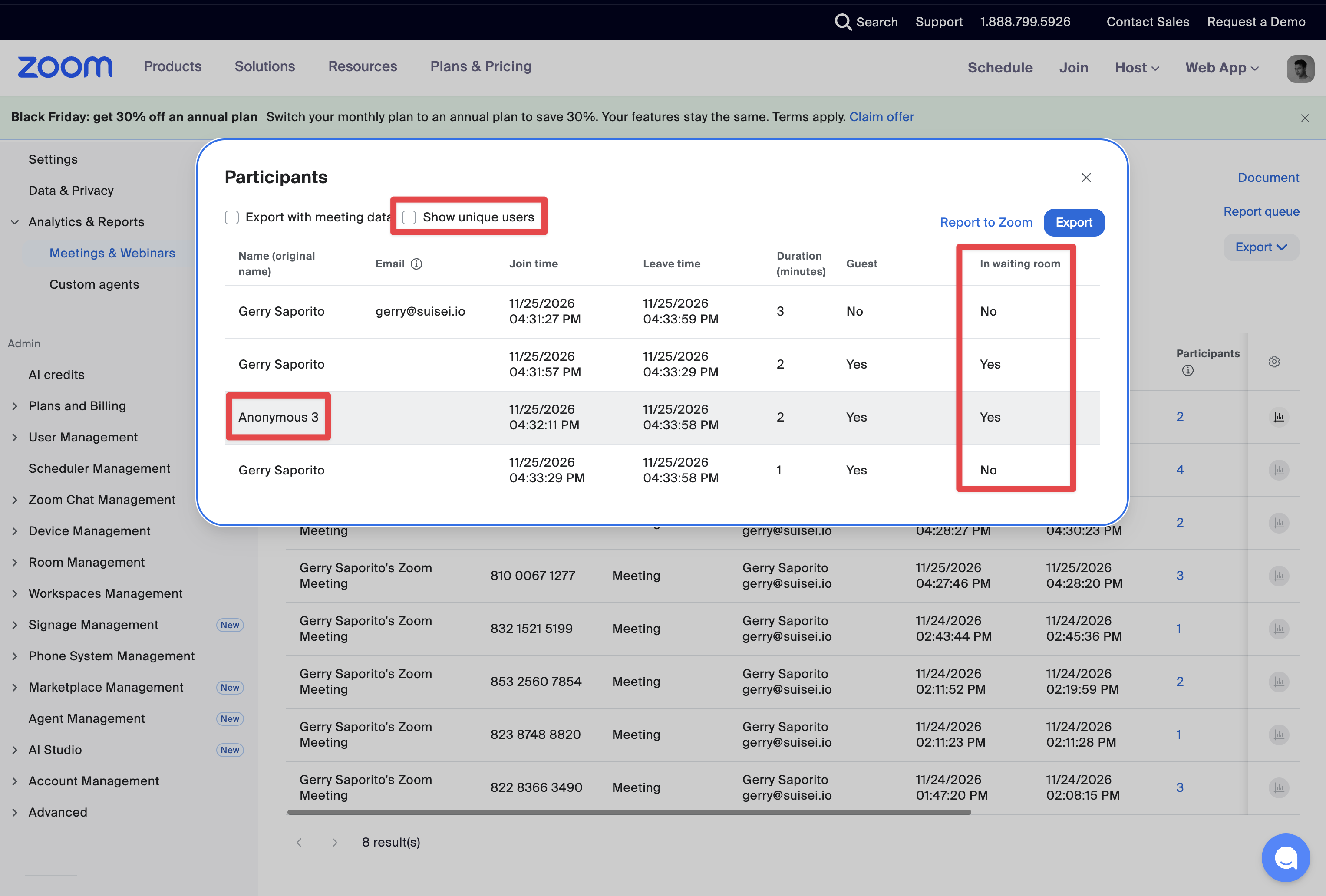
How to interpret the Participants report
Find the bot’s display name under Name (original name) in the Zoom meeting's participant report.
Each row has its own Join time and Leave time into the meeting. Zoom can list Waiting Room time and in-call time on separate rows, and leaving and rejoining can add another row. If the bot is sent back to the Waiting Room and readmitted, use any later rows to check when it waited and rejoined.
- If the bot’s name isn’t listed - the bot never joined this meeting.
- The bot’s name is listed. Check In waiting room on all rows for the bot. A No row confirms it joined the call. If all its rows say Yes, it waited and left without being admitted.
To check whether the bot was in the call when expected, compare the Join time and Leave time on a No row with the expected arrival time in the same time zone.
Comparing the bot’s status with what attendees saw
Why did no one see the bot in the Waiting Room?
The host and co-hosts can see and admit people in Zoom’s Waiting Room. If attendees say they never saw the bot and the Participants report shows it was waiting, confirm which meeting they mean and check who held those roles at the time.
- The host signed in to a different Zoom account. They may have joined as an attendee (e.g., using a personal account). Ask them to check the account they used and who Zoom listed as Host in the Participants panel.
- Someone else created the meeting. If a scheduling tool or someone outside the call (e.g., an executive assistant) created the link, confirm which Zoom user the meeting was scheduled by. The calendar organizer and the person with Zoom host controls can be different.
- The host was absent when the bot arrived. Check whether a co-host or alternative host was in the call while the bot was in the waiting room. If no one had host controls, attendees may have been unable to see the bot. Depending on the Waiting Room settings, Zoom can let attendees who bypassed the Waiting Room admit others while the host and co-hosts are absent.
- They’re looking at a different meeting. Ask for the Zoom link and start time of the call they remember, then compare them with the bot’s meeting details in Recall. Recurring Zoom meetings reuse the same meeting ID, so use the date and start time to match the occurrence.
Why did a participant see a bot in the meeting when the bot shows a Waiting Room timeout?
A Waiting Room timeout belongs to a specific bot ID. Check that bot’s status history for an earlier in-call event. If it has none, check which bot the participant saw.
- Another Recall bot joined the meeting. In the Explorer Dashboard, filter by Meeting URL. Use Join At to narrow the results to the meeting start time or the bot’s expected join time. Open the matching bot records and check which one entered the call.
- A different notetaker app (unrelated to your product) joined the meeting. Different apps can send bots with the same display name in Zoom. Ask the participant if they have any third-party notetaker apps which were enabled for that meeting or who invited it.
Updated 7 minutes ago