

Share and control a webpage via camera or screenshare
Display a webpage through a meeting bot’s camera or screenshare and update its content during the meeting.
Output Media works by having the bot run a webpage you control and then stream that page’s audio and video into the meeting. The bot can present the webpage either as a screenshare or as its camera video, so whatever your page renders is what participants see and hear.
Use this guide to let your agent display and control content such as slides, charts, or an application UI. To build your own agent or avatar that listens and responds to participants, follow Build a custom meeting agent.
Quickstart
Send requests to the region where you created the bot, using your Recall API key in the Authorization header. The cURL examples use us-west-2; replace the region if needed. Replace {bot_id} with the bot's ID.
Starting Output Media automatically when bot joins via the Create Bot API
You can use the output_media configuration in the Create Bot endpoint to stream the audio and video contents of a webpage to your meeting. The bot can display the webpage either as a screen-share, or directly through its own camera.
Each source under output_media.camera or output_media.screenshare takes the following parameters:
kind: Set towebpagefor this integrationconfig: The webpage configuration (currently only supportsurl)
Let's look at an example call to the Create Bot endpoint:
POST /api/v1/bot/
{
  "meeting_url": "https://us02web.zoom.us/j/1234567890",
  "bot_name": "Recall.ai Notetaker",
  "variant": {
    "zoom": "web_4_core",
    "google_meet": "web_4_core",
    "microsoft_teams": "web_4_core",
    "webex": "web_4_core"
  },
  "output_media": {
    "screenshare": {
      "kind": "webpage",
      "config": {
        "url": "https://www.recall.ai"
      }
    }
  }
}
The example above tells Recall to create a bot that will continuously stream the contents of the Recall.ai homepage to the provided meeting URL. Use camera instead of screenshare to display the webpage as a camera.
Starting Output Media manually via the Start Output Media API
You can also choose to start streaming a webpage by calling the Output Media endpoint at any time while the bot is in a call.
The parameters for the request are the same as the output_media configuration.
curl --request POST \
     --url https://us-west-2.recall.ai/api/v1/bot/{bot_id}/output_media/ \
     --header "Authorization: ${RECALL_API_KEY}" \
     --header 'accept: application/json' \
     --header 'content-type: application/json' \
     --data-raw '
{
    "screenshare": {
      "kind": "webpage",
      "config": {
        "url": "https://recall.ai"
      }
    }
}
'
Stopping Output Media via the API
You can stop the bot's media output at any point while the bot is streaming media by calling the Stop Output Media endpoint.
curl --request DELETE \
     --url https://us-west-2.recall.ai/api/v1/bot/{bot_id}/output_media/ \
     --header "Authorization: ${RECALL_API_KEY}" \
     --header 'accept: application/json' \
     --header 'content-type: application/json' \
     --data-raw '{ "screenshare": true }'
The above stops screensharing. Use camera: true to stop camera output. Explicitly targeting screenshare keeps a separate camera session running.
Control the webpage content
Your webpage controls what participants see. Update its content or application state to make it interactive. For example, you can change a slide, chart, message, or other content. Recall.ai continues streaming the page as it changes.
For example, your page can receive updates from your application's server over a WebSocket:
<div id="content">Waiting for an update.</div>
<script>
  const updates = new WebSocket("wss://YOUR_APP_HOST/content");

  updates.onmessage = ({ data }) => {
    const { text } = JSON.parse(data);
    document.querySelector("#content").textContent = text;
  };
</script>
Your application supplies the WebSocket server. When it sends a message such as {"text":"Here are the results"}, the page updates and participants see the new content. You do not need another Recall API call for each update.
To let an agent trigger these changes, write a function that updates your application's content and expose it as a tool. See Adding tools to your meeting agents.
Video Specs
Output Media converts the video playing on your webpage to the following format before sending it into the meeting:
| Camera/Screenshare Resolution | Camera/Screenshare Framerate |
|---|---|
| 1280x720 px | 15 fps |
High resolution, high frame rate avatarsInterested in high resolution, high frame rate avatars? Contact us to discuss your use case.
Audio specifications
Output Media converts the audio playing on your webpage to the following format before sending it into the meeting:
| Property | Current specification |
|---|---|
| Sample rate | 16 kHz |
| Channels | Mono |
See the overview for supported meeting platforms. Output Media and web_4_core are available in all Recall.ai regions.
Debugging Your Webpage
Local development
When running your webpage locally, you will need to expose it through a public URL using a tunneling tool such as ngrok.
If your webpage is making API requests to another local server, you will also need to ensure that these are routed through a publicly exposed endpoint as well (using ngrok or similar). If you don't do this, your webpage may not function as expected since API calls to localhost endpoints are blocked within the bot's Output Media process.
Accessing Chrome Devtools
During the development process, you will need to debug issues with your Output Media bot's webpage. Recall provides an easy way to connect to the webpage's Chrome Devtools while the bot is running. Check the video demo below and read the following instructions to learn how to access your bot's Devtools.
- Send an output media bot to your meeting, and wait for its output media stream
- Log in to your Recall.ai dashboard
- Select Bot Explorer in the sidebar
- In the Bot Explorer app, search for your bot by ID
- Open the "Debug Data" tab for your bot. Then under CPU Metrics, click the "Open Remote Devtools" button. A devtools inspector connected to your live bot will open in a new tab.
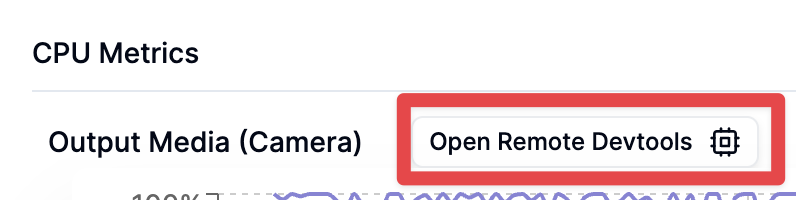
This opens a full Chrome inspector connected to your bot's browser. You can inspect elements, check console logs, monitor network requests, and debug just like you would locally.
Bot must be aliveSince Output Media Devtools are exposed by the bot itself and CPU metrics are in real-time, they are only available when the bot is actively in a call.
Profiling CPU usage
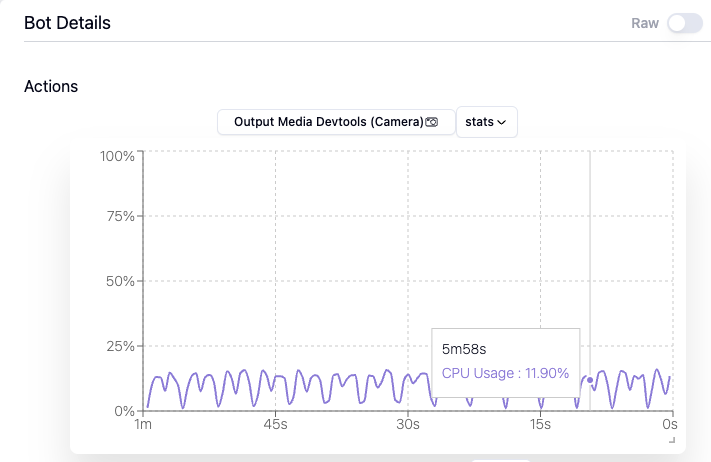
You can also view the CPU usage for an individual bot in the "Bot Details" section. You can use this graph to uncover any performance bottlenecks with your webpage which might be causing the webpage to lag or perform poorly.
Addressing audio and video issues: bot variants
While we expose CPU metrics to help you identify and address any performance issues on your end, sometimes this is out of your control and you just need more CPU power or hardware acceleration. Below is a breakdown of the compute resources available to the instance running your webpage:
| Variant | CPU | Memory | WebGL | Camera/Screenshare Resolution | Camera/Screenshare Framerate |
|---|---|---|---|---|---|
web (default) | 250 millicores | 750MB | ❌ Unsupported | 1280x720 px | 15 fps |
web_4_core | 2250 millicores | 5250MB | ❌ Unsupported | 1280x720 px | 15 fps |
web_gpu | 6000 millicores | 13250MB | ✅ Supported | 1280x720 px | 15 fps |
To use these configurations, you can specify the variant in your Create Bot request. For example, this is how you can specify that your bot should use the 4 core bot variety on Zoom, Google Meet, Microsoft Teams, and Webex:
{
  "variant": {
    "zoom": "web_4_core",
    "google_meet": "web_4_core",
    "microsoft_teams": "web_4_core",
    "webex": "web_4_core"
  }
}
These bots run on larger machines, which can help address any CPU bottlenecks hindering the audio & video quality of your Output Media feature.
Limitations on video qualityUpgrading to a larger bot variant (e.g.,
web_4_coreorweb_gpu) can help if your bot is dropping frames or struggling to keep up with real-time processing (i.e. the bot is resource-constrained).However, it won't improve the source video quality: resolution, compression artifacts, and "fuzziness" are determined by the meeting platform itself and can't be changed by the bot. If your video looks pixelated on
web_4_core, it's likely the meeting platform is sending a lower-quality stream.
ImportantDue to the inherent cost of running larger machines, the prices for some variants are higher. See bot variant billing.
Securing your webpage
You will likely not want your webpage accessible to any individual that opens the page. The standard approach to securing an Output Media webpage is embed a short-lived/pre-authenticated session token within the Output Media URL that your backend can use to authenticate and subsequently redirect.
FAQ
What are the browser dimensions of the webpage?
1280x720px
Can I make the bot only output audio for an audio-only agent?
With the webpage integration, Output Media will always include the webpage as the bot's video. It is also not possible to turn off the camera while webpage output is on.
As a workaround, developers will use a placeholder image (e.g. your company logo/brand) or show a black screen instead.
For audio-only agent implementations, see the implementation guides.
What’s the recommended architecture for a live interactive AI agent?
For a conversational voice agent, pair Output Media with a real-time speech-to-speech (S2S) model or a speech-to-text → LLM → text-to-speech pipeline.
Your Output Media webpage handles the meeting connection:
- Receive live meeting audio through
getUserMedia(). - Stream that audio to your model or pipeline.
- Play the model’s audio responses through the webpage so participants hear them.
- Render any accompanying visuals, such as an avatar, slides, or application UI.
Use your model or agent application’s conversational controls for turn detection, interruptions, and deciding when the agent should respond.
See Making the bot interactive for implementation details.
Does turn detection determine whether someone is addressing the bot?
Turn detection and response selection serve different purposes.
Turn detection identifies speech boundaries and helps manage interruptions. Your agent or model still needs to determine whether the conversation calls for a response.
For example, Gemini documents voice activity detection separately from its proactive audio controls.
How do I debug the webpage?
See Debugging Your Webpage. For agent-specific issues, see the custom agent FAQ.
Can I include the bot in recordings or transcripts?
See the recording FAQ for audio capture, transcription, and video recording availability.
For latency and other questions, see the Meeting agents FAQ.
Updated about 1 hour ago