

Soniox
Set up Soniox for post-meeting transcription and real-time transcription with meeting bots.
Use Soniox as a speech-to-text provider for post-meeting transcription or real-time transcription with meeting bots. This guide covers credentials, regional endpoints, request examples, and provider-specific options.
Supported transcription workflows
| Workflow | Supported | Provider field |
|---|---|---|
| Post-meeting transcription from meeting bots or Desktop Recording SDK | Yes | soniox_async |
| Real-time transcription with meeting bots | Yes | soniox_streaming |
| Real-time transcription with Desktop Recording SDK | No | — |
Setup
Create a Soniox API key
- Sign in to the Soniox Console and open the project you want to use for transcription.
- On the organization Dashboard, find your project under Projects. Note its Region, STT REST API, and STT WebSocket API hostnames. For a regional project, follow Soniox's data residency guide to request region access and create a project in that region.
- Open API keys and select Create API key. Give the key a descriptive name. Use a regular project API key for this integration.
- Turn off Full access. Select Speech-to-text, real-time → Access for live transcription and Speech-to-text, async → Write for post-meeting transcription. Leave the other permissions at No Access. Async Write also allows reading and deleting transcription jobs. See Soniox API key permissions.
- Create the key and copy it. Soniox shows the full key only once. Ensure the project has available API credit and quota.
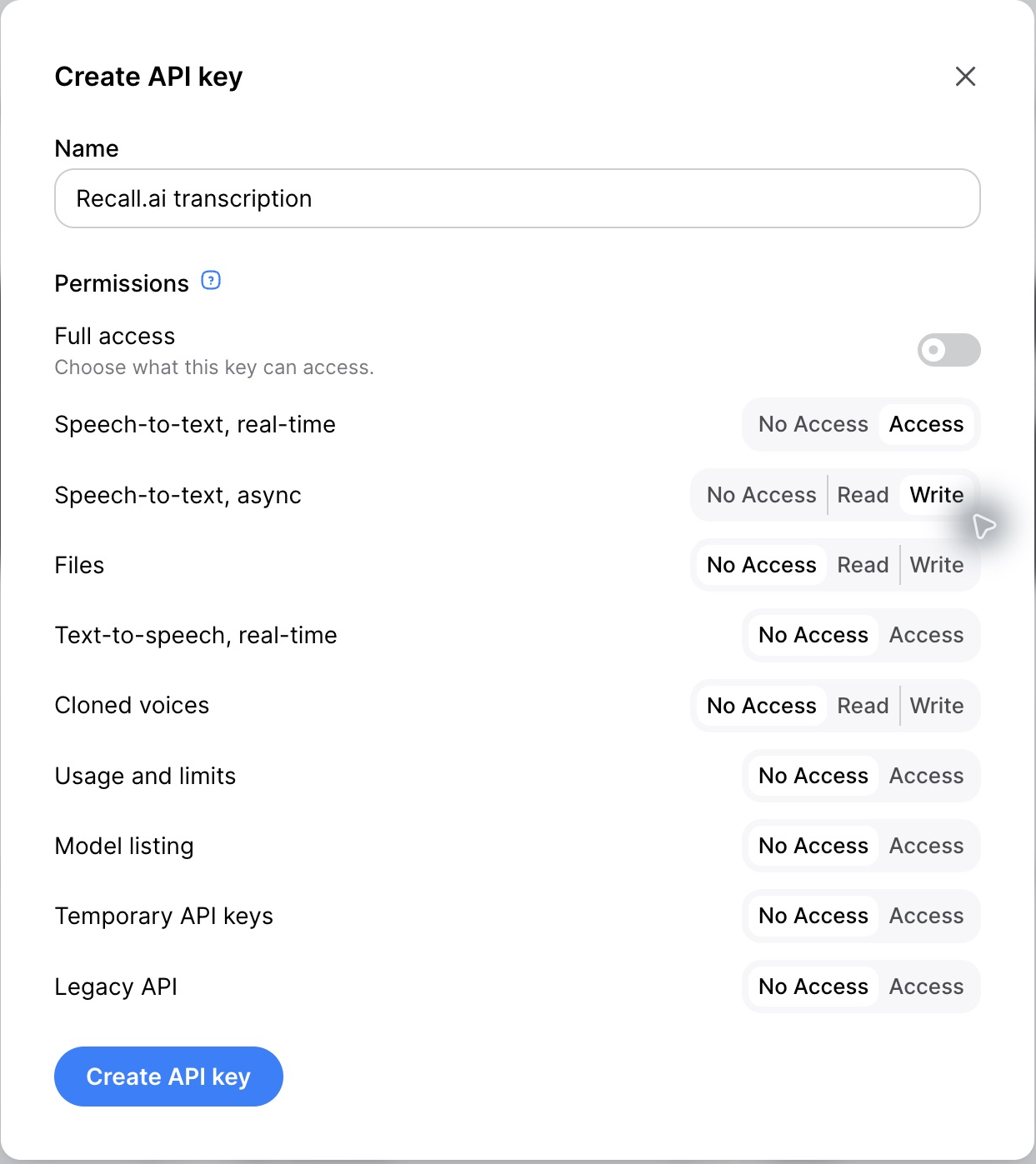
The screenshot shows the permissions required to use both real-time and post-meeting transcription with Recall.ai:
- Real-time transcription (
soniox_streaming): set Speech-to-text, real-time to Access. - Post-meeting transcription (
soniox_async): set Speech-to-text, async to Write.
To use both, select both permissions as shown above. The other permissions can remain at No Access.
Add the key to Recall.ai
Open Transcription → Soniox in the Recall.ai dashboard for the region where you create recordings:
Paste the key into API Key. Set Endpoint for post-meeting transcription and Streaming Endpoint for real-time transcription to match the Soniox project's region, then save.
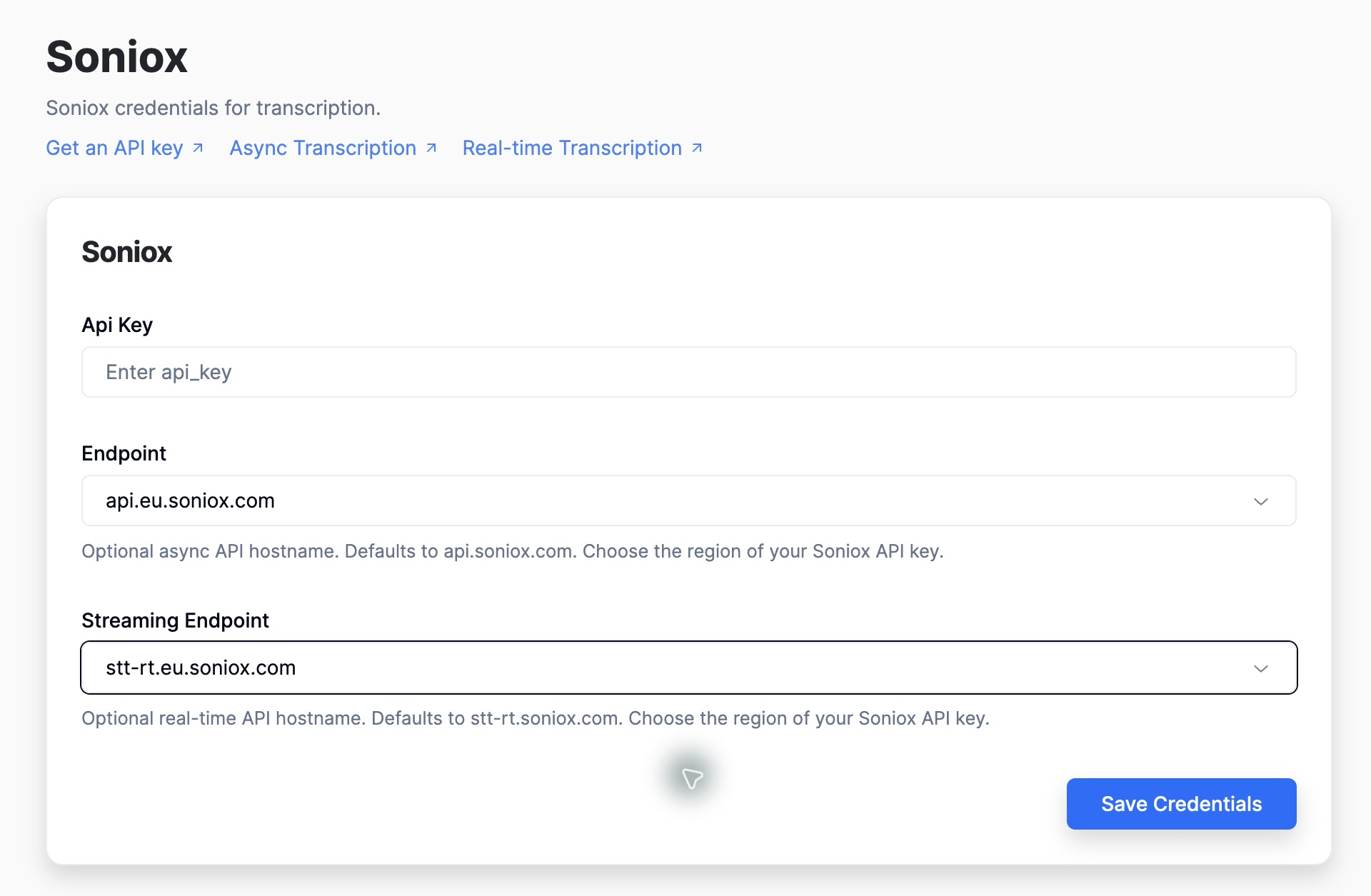
The screenshot shows the endpoint pair for an EU Soniox project. Use the pair for your own project below.
| Soniox project region | Endpoint | Streaming Endpoint |
|---|---|---|
| United States (default) | api.soniox.com | stt-rt.soniox.com |
| European Union | api.eu.soniox.com | stt-rt.eu.soniox.com |
| Japan | api.jp.soniox.com | stt-rt.jp.soniox.com |
| India | api.in.soniox.com | stt-rt.in.soniox.com |
The Recall.ai region and the Soniox project region are separate settings. Choosing an EU Recall.ai workspace does not automatically select Soniox's EU endpoints. Use the matching Soniox key and both hostnames. Blank endpoint fields use Soniox's US endpoints. Recall.ai regions are isolated, so add credentials in each Recall.ai region you use.
Saving credentials does not enable transcription by itself. Select a provider in each API request as shown below. Configure Soniox endpoints in the dashboard, not inside the request's provider settings.
Post-meeting transcription
Call Create Async Transcript after the recording is complete:
curl --request POST \
  --url https://RECALL_REGION.recall.ai/api/v1/recording/RECORDING_ID/create_transcript/ \
  --header 'Authorization: RECALL_API_KEY' \
  --header 'Content-Type: application/json' \
  --data '{
    "provider": {
      "soniox_async": {
        "model": "stt-async-v6"
      }
    }
  }'
Replace RECALL_REGION, RECORDING_ID, and RECALL_API_KEY with your values. The Authorization header contains your Recall.ai API key; the Soniox key is stored separately in the dashboard.
Follow the post-meeting transcription guide for completion and failure webhooks and retrieving the finished transcript. Recall.ai supplies the recording audio and manages the Soniox job. You do not need to upload audio to Soniox or configure a Soniox webhook. Do not pass audio_url, file_id, or Soniox webhook settings in soniox_async.
Real-time transcription with meeting bots
Call Create Bot with recording_config.transcript.provider.soniox_streaming. Configure live transcript delivery separately through recording_config.realtime_endpoints:
curl --request POST \
  --url https://RECALL_REGION.recall.ai/api/v1/bot/ \
  --header 'Authorization: RECALL_API_KEY' \
  --header 'Content-Type: application/json' \
  --data '{
    "meeting_url": "MEETING_URL",
    "recording_config": {
      "transcript": {
        "provider": {
          "soniox_streaming": {
            "model": "stt-rt-v6"
          }
        }
      },
      "realtime_endpoints": [
        {
          "type": "webhook",
          "url": "REAL_TIME_TRANSCRIPT_WEBHOOK_ENDPOINT",
          "events": ["transcript.data", "transcript.partial_data"]
        }
      ]
    }
  }'
Replace the placeholders with your Recall.ai region and API key, meeting URL, and reachable webhook URL. For WebSocket delivery, use "type": "websocket" and a wss:// URL. See Real-Time Websocket Endpoints.
transcript.datacontains finalized text.transcript.partial_datacontains interim text that can change. Subscribe to this event if you need partial updates; Soniox does not use a separateinterim_resultsoption.
See the meeting bot real-time transcription guide for request verification, event handling, failures, and downloading the full transcript after the meeting. Recall.ai configures the audio format, sample rate, and channel count for you.
Provider configuration
Set options inside soniox_async or soniox_streaming, depending on the workflow. model is required. The examples use Soniox's current v6 models; choose a model for the matching workflow.
| Option | Workflows | Purpose |
|---|---|---|
model | Both | stt-async-v6 for post-meeting; stt-rt-v6 for real-time. |
language_hints | Both | Array of expected language codes, such as ["en", "es"]. Omit for automatic language detection. |
enable_language_identification | Both | Include detected language information in provider output. |
context | Both | Supply terminology and context, such as {"terms": ["Recall.ai", "Soniox"]}. |
enable_speaker_diarization | Both | Enable Soniox's speaker separation. See Diarization for how Recall.ai uses speaker labels. |
enable_endpoint_detection | Real-time | Enabled by default by Recall.ai to detect utterance boundaries. |
max_endpoint_delay_ms | Real-time | Tune endpoint detection delay; accepts 500–3000 milliseconds. |
See the provider fields in Create Bot and Create Async Transcript for the full options accepted by Recall.ai.
Multilingual transcription and translation
To give language hints and custom terms, add these options alongside your model:
{
  "language_hints": ["en", "es"],
  "enable_language_identification": true,
  "context": {
    "terms": ["Recall.ai", "Soniox"]
  }
}
Recall.ai's normalized transcript represents the original speech. Soniox translation tokens and audio events are not included in the normalized transcript, even when you enable Soniox's translation option. Use provider-specific data to access those fields. Raw provider data is unavailable when diarization.use_separate_streams_when_available is enabled.
Troubleshooting
- Credentials not configured: Add the Soniox key in the same Recall.ai workspace and region used by the API request.
- Authentication or permission failure: Confirm the key belongs to the Soniox project selected for the endpoint region and has the required speech-to-text permissions. Check the project's balance and quota.
- Request validation fails: Supply
model, choose exactly one provider, and usesoniox_asyncfor post-meeting orsoniox_streamingfor bots. Soniox real-time transcription is not available with the Desktop Recording SDK. - No live transcript events: Configure a reachable real-time endpoint and subscribe to
transcript.data; addtranscript.partial_dataif you need interim updates. Saving a key alone does not start transcription.
Updated about 1 hour ago