

Google Meet Signed-in Bots
Set up signed-in Google Meet bots to avoid guest limitations and allow joining meetings that require Google sign-in.
Use signed-in bots when:
- A meeting requires Google authentication.
- You want bots to appear with a Google account's identity (profile photo + display name).
- You want a bot to bypass the waiting room for a same-workspace meeting or if it's invited to a calendar event
Integration guide
Step 1. Set up the bot account
- With an admin user, sign into your google workspace and create a new user for the bot
The Google account the bot uses to login must not be an admin in the Google Workspace. If the bot tries to login with an admin account, the login flow will fail.
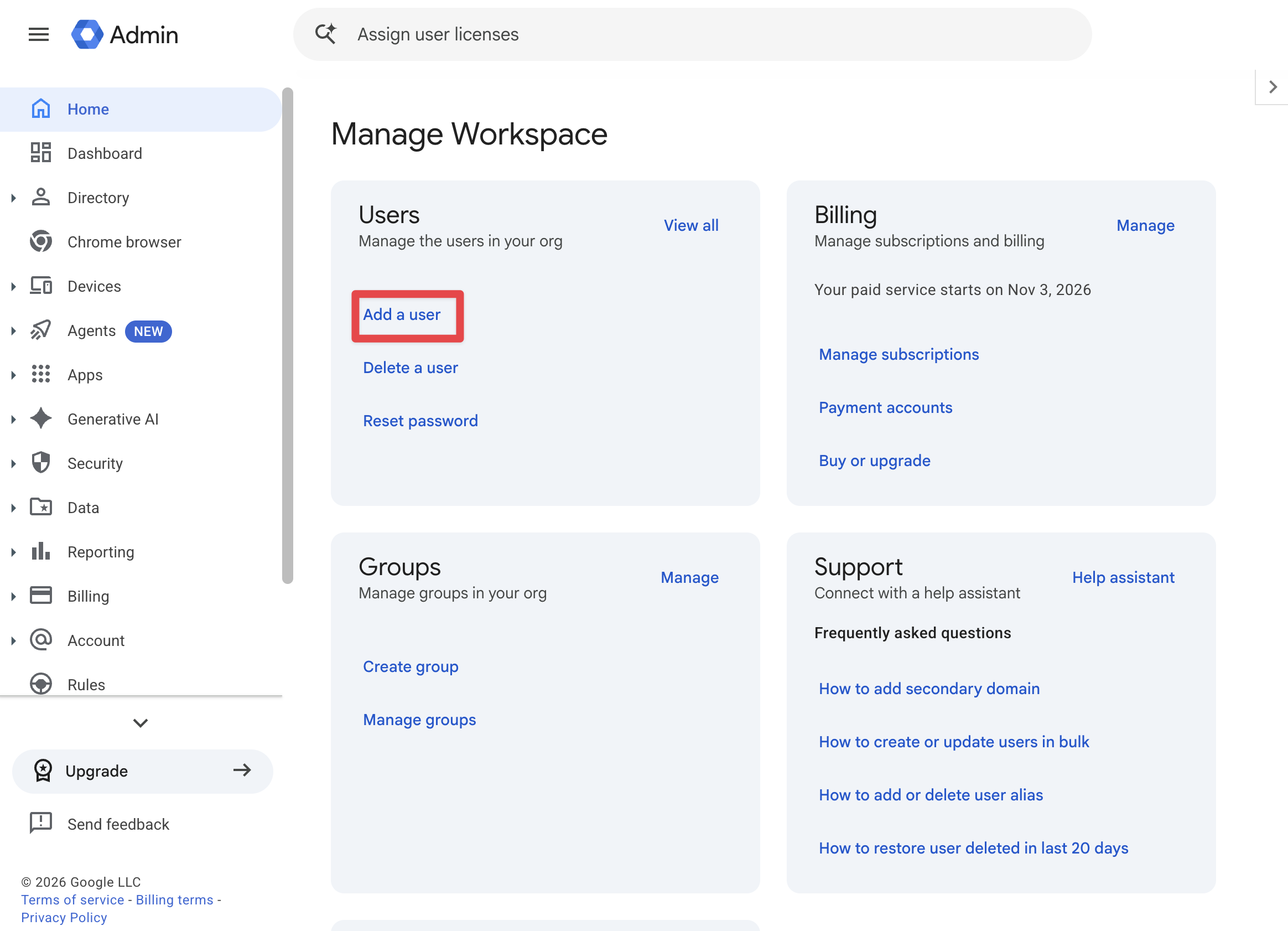
- Sign into the bot account before enableing SSO. Complete any google setup prompts and confirm access to Google Meet.
- Set the account's profile picture from the admin account, if desired. You can also rename the bot from the admin console. Google Meet uses these for the signed-in bot; the account name overrides Create Bot's
bot_name.
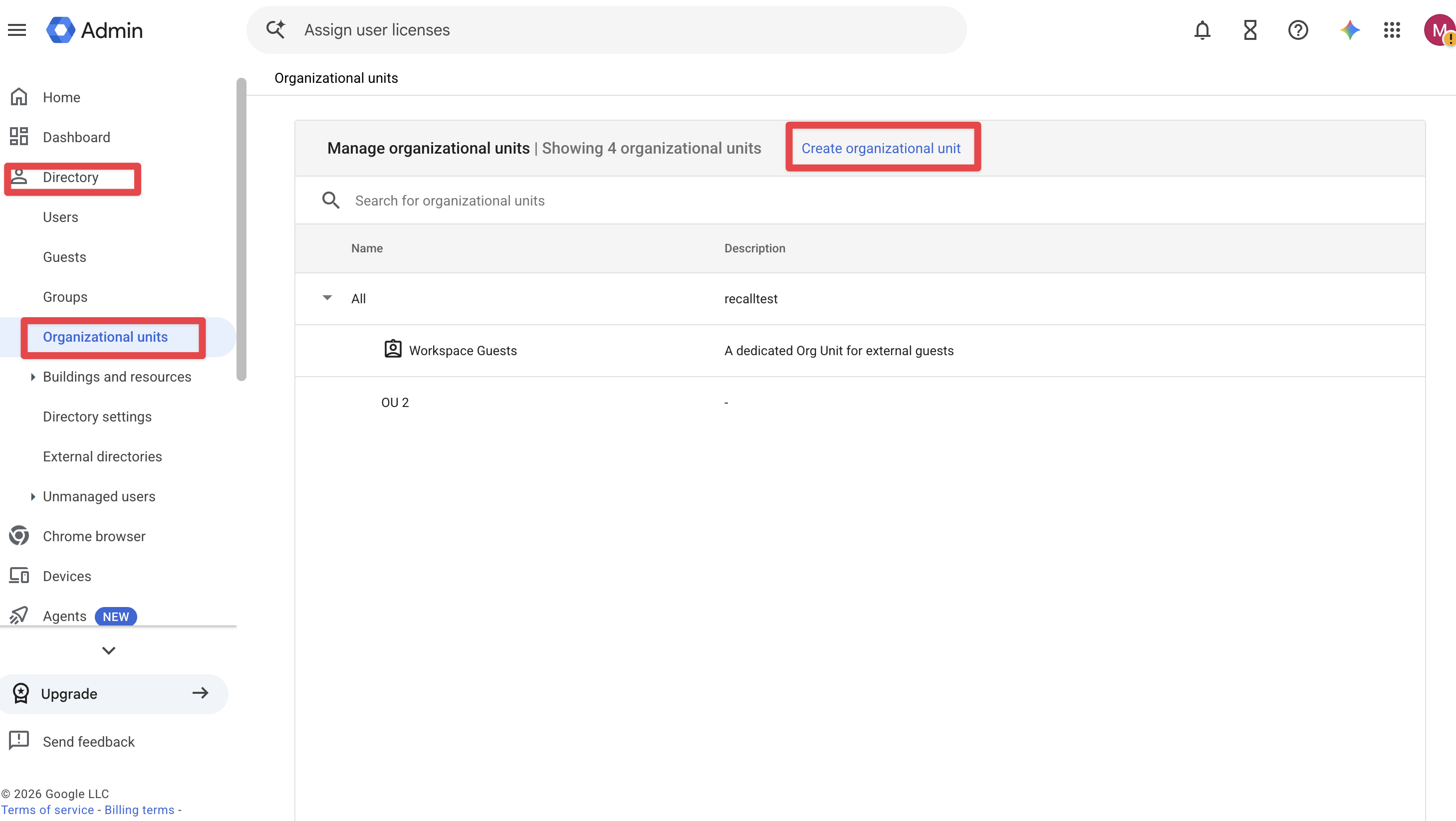
- Create a new organizational unit in Directory > Organizational units. Enter a name and press Create.
-
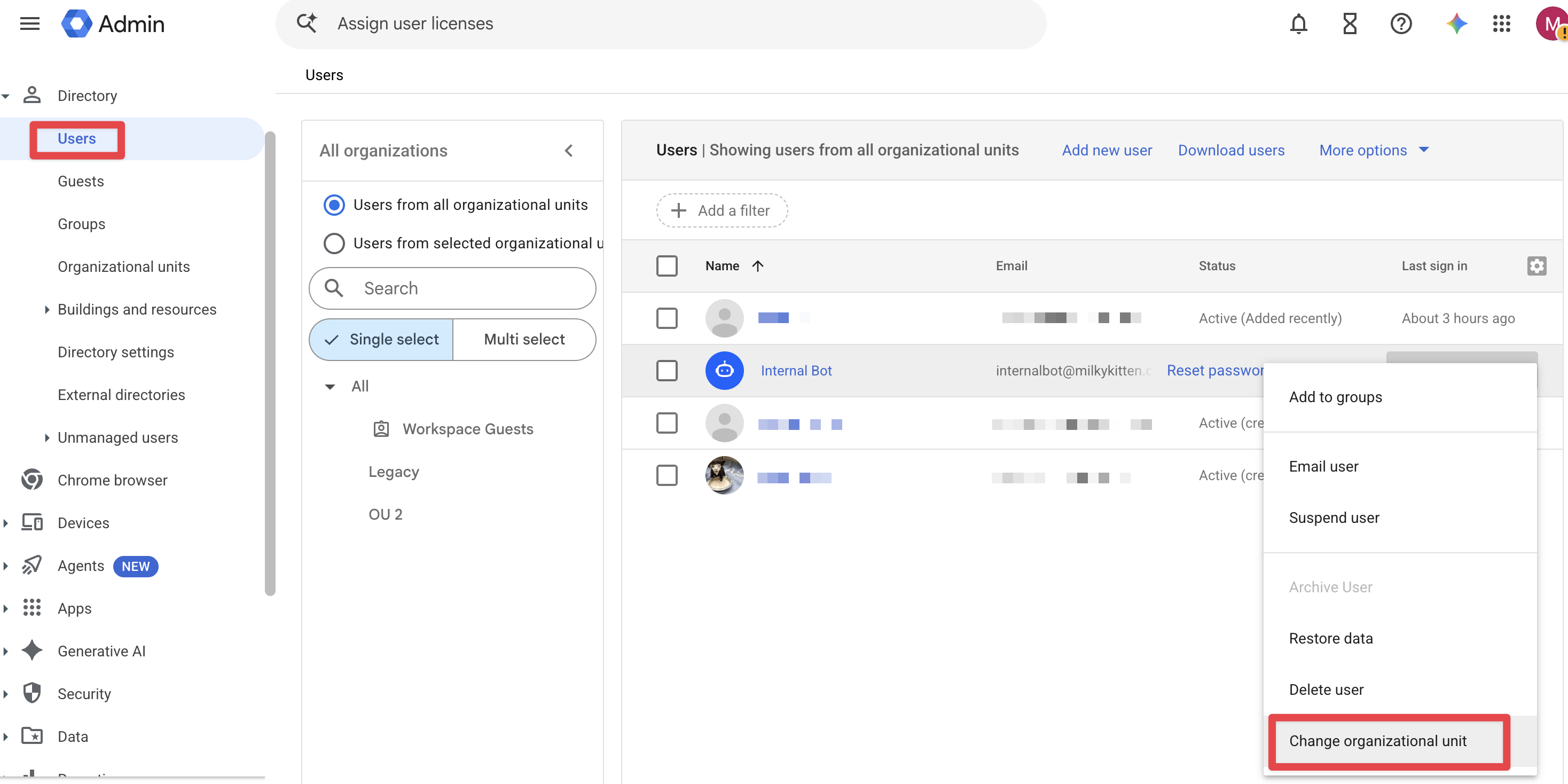
Add the user to the newly created Organizational Unit. Hover over the user, click the More Options dropdown, select Change organizational unit, select the new OU and press Continue. Confirm the pop up. It may ask you to reauthenticate as the admin user before the change goes through.
This change may take up to 24 hours to take effect, but usually only takes a few minutes.
Generate a matching private key and certificate
Run the following command in a new directory so that you do not overwrite an existing key pair:
openssl req -x509 -newkey rsa:2048 \
  -keyout google-meet-sso-key.pem \
  -out google-meet-sso-cert.pem \
  -sha256 -days 3650 -nodes \
  -subj "/CN=google-meet-sso"
Recall uses google-meet-sso-key.pem to sign SAML responses; Google uses google-meet-sso-cert.pem to verify them.
Save both files securely for as you will need it later in this guide. You can also record which Workspace and Recall Logins use them for later reference if needed. Never include the private key in source control, support messages, or screenshots.
Configure Google's Legacy SSO profile
Use Legacy SSOGoogle's newer SAML/OIDC profiles are not supported for signed-in Google Meet bots at this time.
The administrator needs the Security Settings privilege.
-
Open Google Admin → Security → Authentication → SSO with third party IdP.
-
Click Add SAML profile.
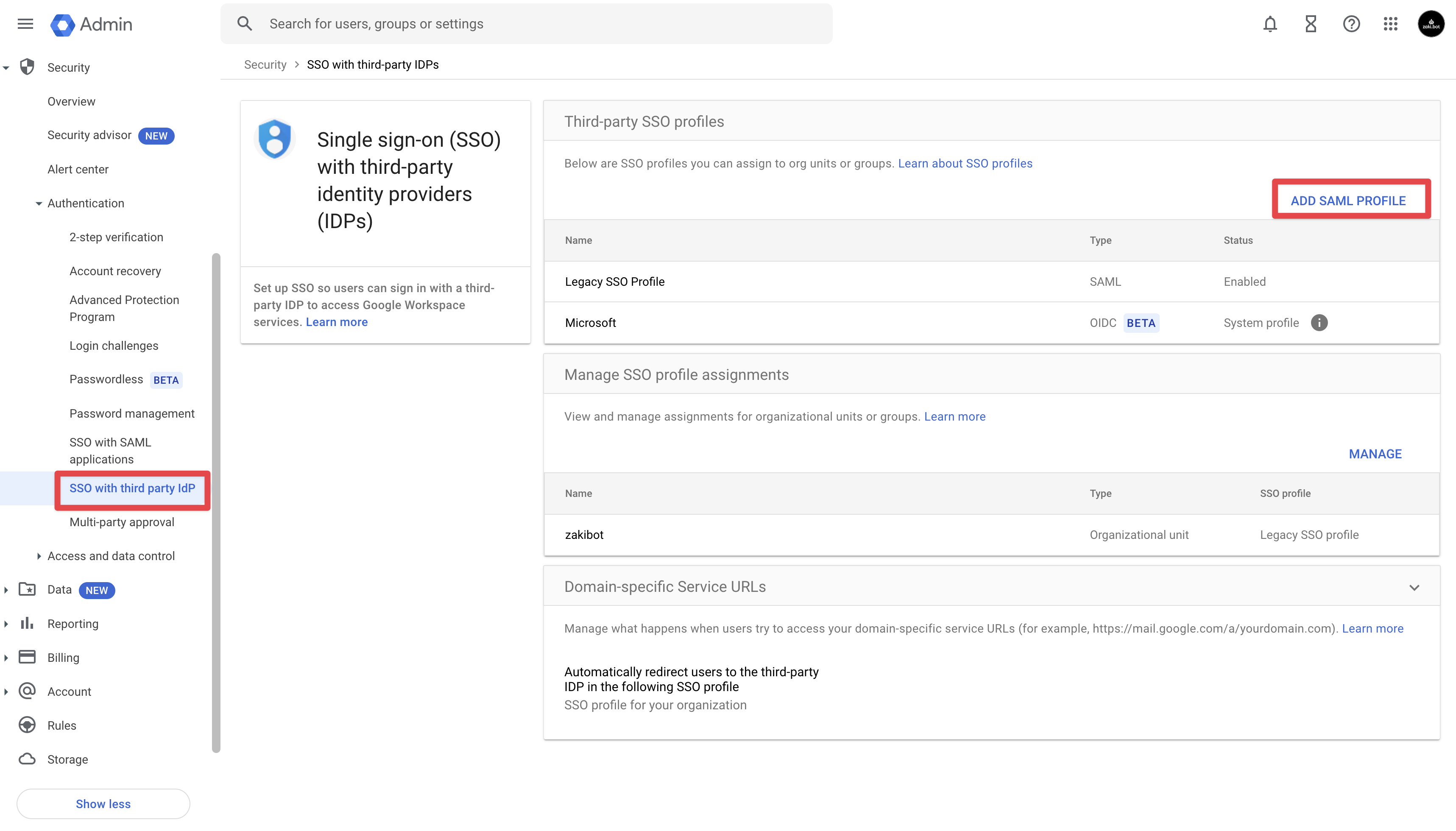
Open Add SAML profile to reach the Legacy SSO settings.
-
At the bottom of the IdP details page, click Go to legacy SSO profile settings.
-
Enter these redirect URLs, replacing RECALL_REGION with the region of your workspace:
Setting Value Sign-in page URL https://RECALL_REGION.recall.ai/api/v1/bot/gmeet-sign-inSign-out page URL https://RECALL_REGION.recall.ai/api/v1/bot/gmeet-sign-out -
Upload
google-meet-sso-cert.pemas the verification certificate. -
Enable Use a domain-specific issuer and save. For
meet-bots.example.com, the issuer isgoogle.com/a/meet-bots.example.com.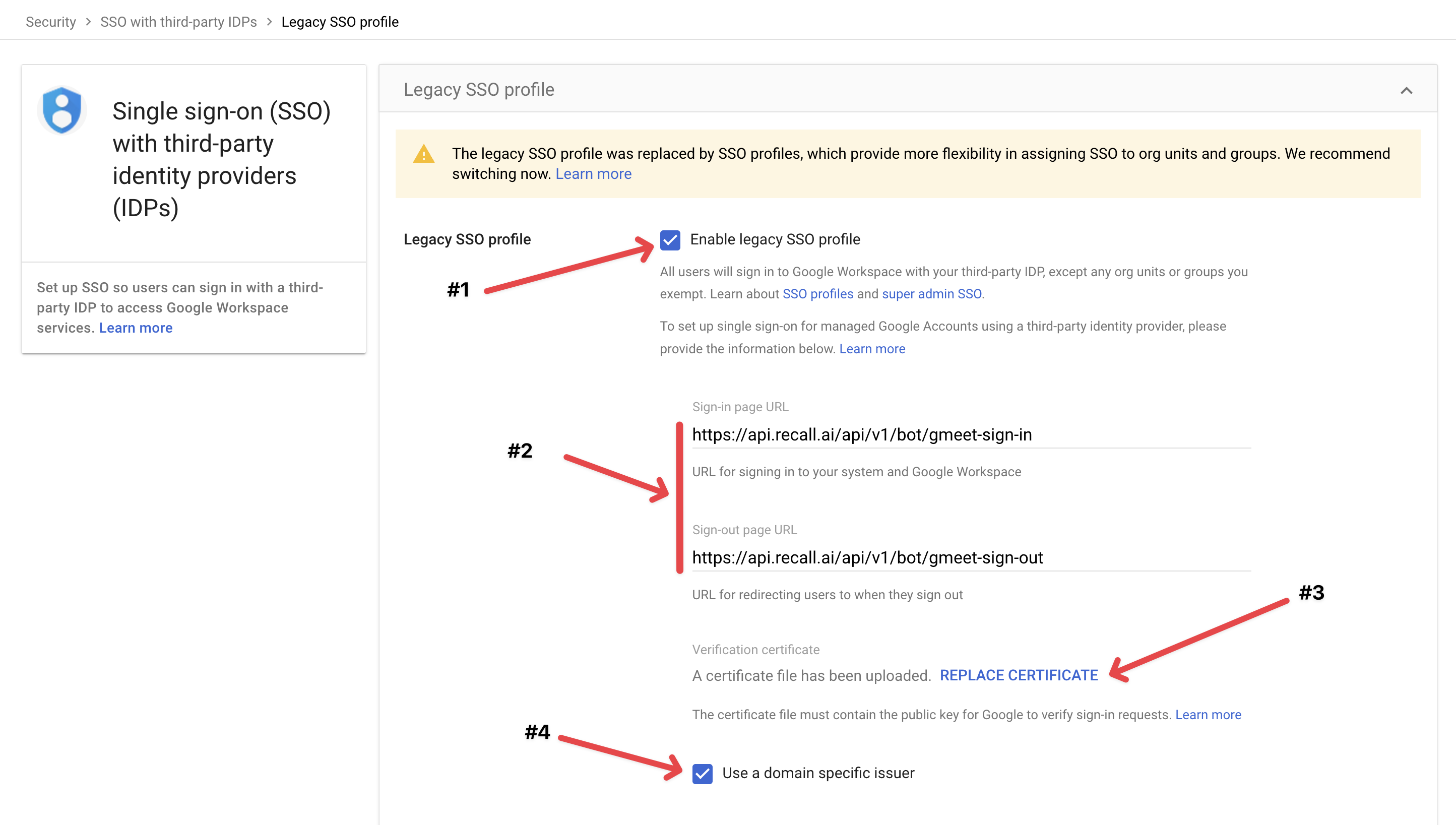
Configure the Legacy SSO profile, verification certificate, and domain-specific issuer.
-
Return to Manage SSO profile assignments and assign the Legacy SSO profile to the new organizational unit you created earlier.
Ensure the newly created organizational unit is selected, change the SSO profile from None to Legacy SSO profile.
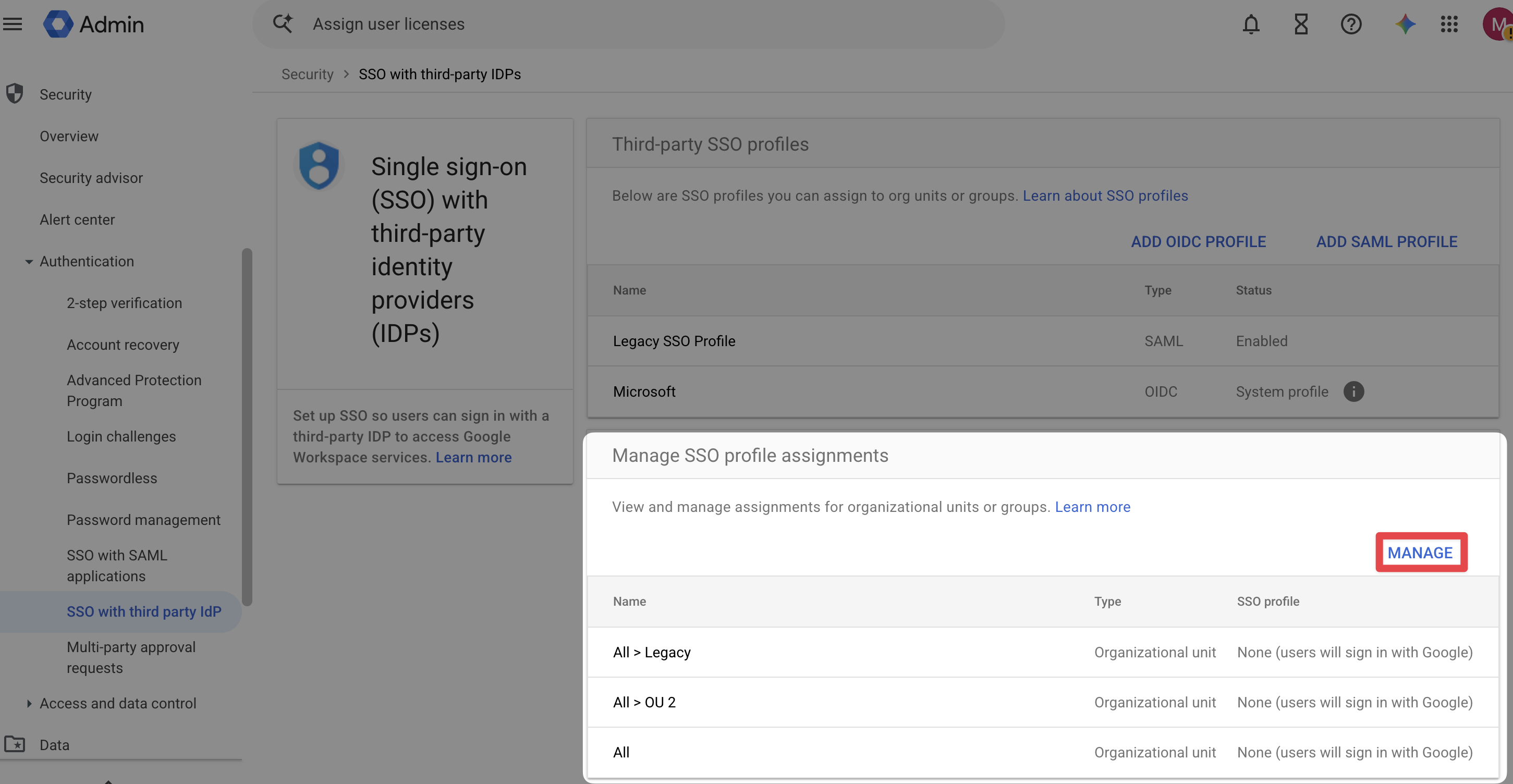
Click manage under Manage SSO profile assignments
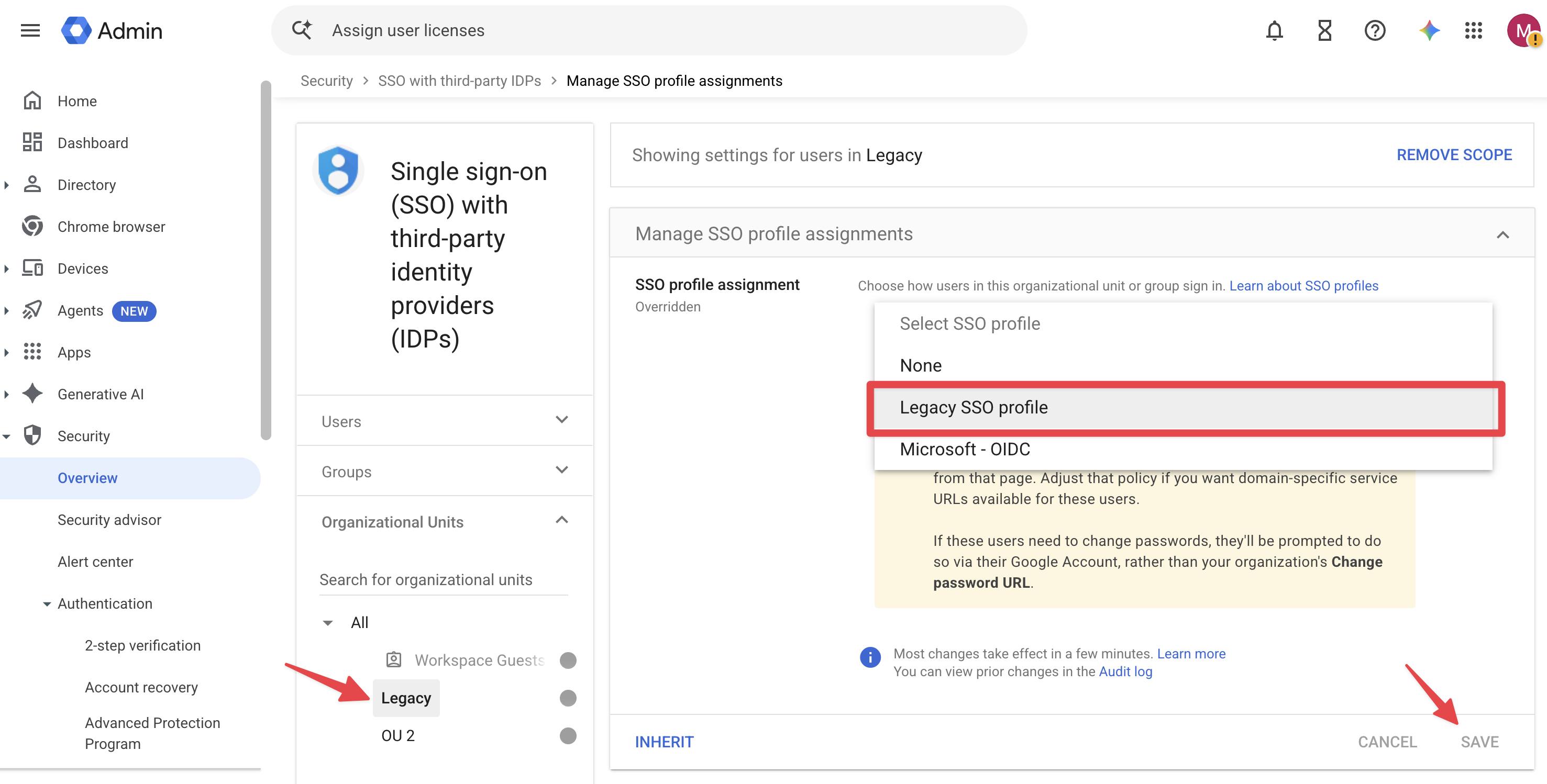
Ensure the newly create OU is selected
Use the Users view to check the effective assignment for each bot user. Confirm that an inherited organizational-unit or group setting has not selected another profile or
None.
Step 2. Create a Google Login Group in Recall
A Google Login Group holds the accounts Recall can select and controls when bots sign in. Recall selects an active Login from the group for each bot; adding accounts helps distribute concurrent sign-ins.
Use the same Recall workspace and region for the group, Logins, and bots. Group IDs cannot be used across Recall workspaces.
Open API Explorer → Google Logins in your regional dashboard:
us-east-1 · eu-central-1 · us-west-2 · ap-northeast-1
Select the groups view, click Create Group, and give it a name. Set login_mode to always so the setup test attempts sign-in. Save the group's id.
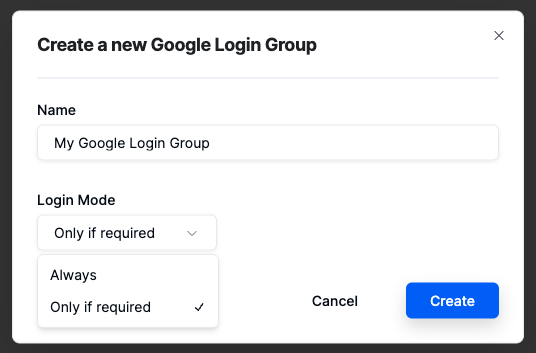
Set the group's login mode to always for the setup test.
For conditional sign-in, see Which login mode should I use?
Step 3. Add Google Logins to the group
A Google Login connects an existing Google account to the group. Creating Recall resources does not create Google users or configure Workspace SSO.
In API Explorer → Google Logins, open the Logins tab and select Create Login.
Enter the bot account's email, select the Login Group from step 2, upload the private key and certificate from step 1, and click Create.
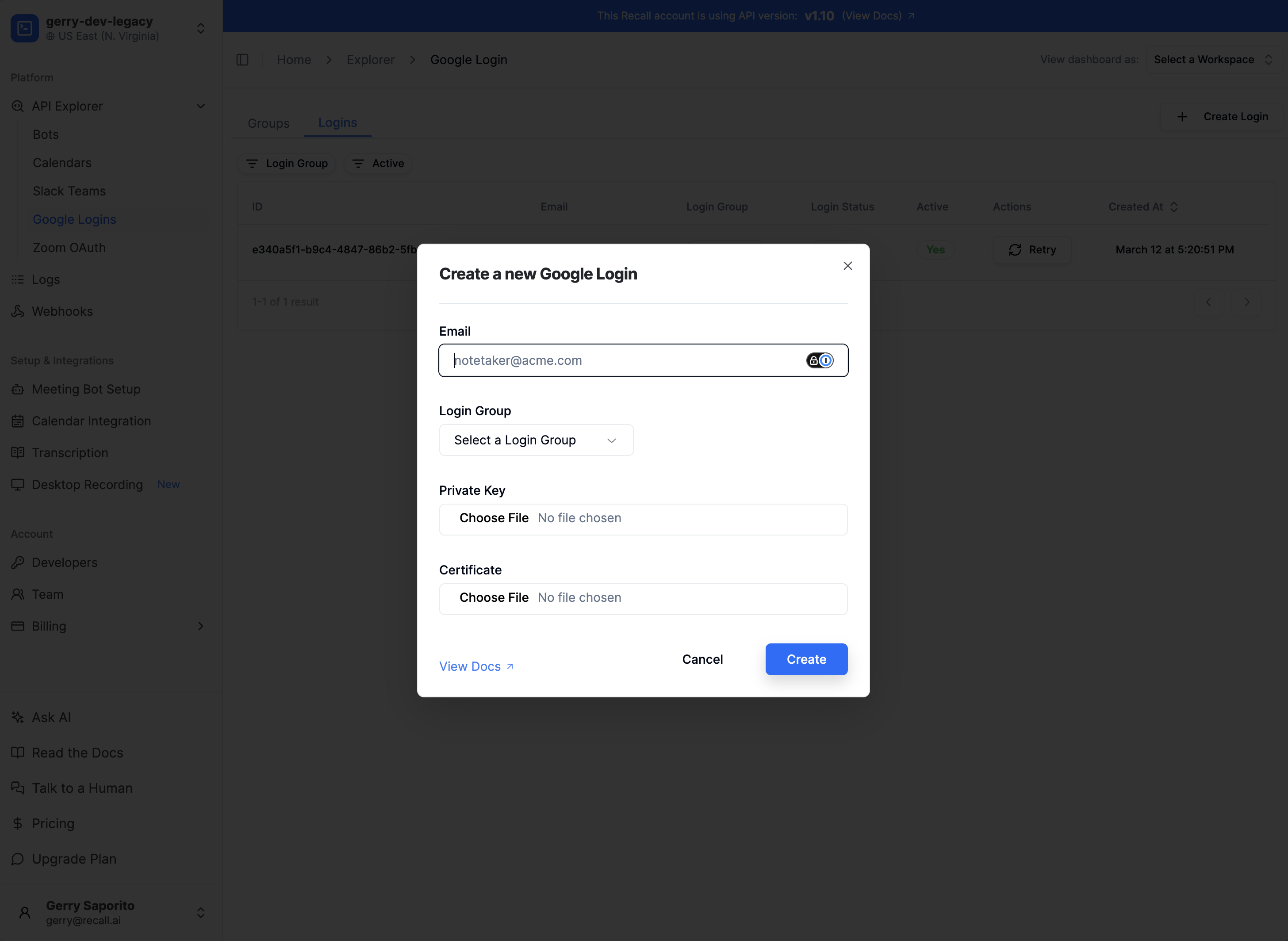
Active does not confirm sign-inActive enables the Login for selection and background sign-in preparation. Ready means the required credential data is stored, not that a live sign-in has been verified.
Check Login Status before testing. If preparation fails, review the account and SSO settings, then click Retry after correcting any issues. See Login statuses for other states.
Step 4. Send a test bot and verify its identity
Either create a meeting that requires participants to be signed-in or create a new Google Login Goup with Login Mode set to always.
Then send a request via the Create Bot endpoint with your meeting URL and group ID. Replace the variables and meeting URL below with your own values:
RECALL_REGION="us-west-2"
RECALL_API_KEY="YOUR_RECALL_API_KEY"
GOOGLE_LOGIN_GROUP_ID="YOUR_GOOGLE_LOGIN_GROUP_ID"

curl --request POST \
  --url "https://${RECALL_REGION}.recall.ai/api/v1/bot/" \
  --header "Authorization: Token ${RECALL_API_KEY}" \
  --header "Content-Type: application/json" \
  --data "{
    \"meeting_url\": \"https://meet.google.com/YOUR-MEETING-CODE\",
    \"google_meet\": {
      \"google_login_group_id\": \"${GOOGLE_LOGIN_GROUP_ID}\"
    }
  }"
Pass the intended group ID explicitly in every bot-creation path.
To verify the test:
- Save the bot ID and check its status changes to see if it failed to join the call.
- Confirm that the actual request uses the intended group, Recall workspace, and region.
- Compare the bot's name and profile picture with an account in the selected Login Group. A group with multiple accounts can select a different account for each bot.
Customer-defined metadata and Google warnings are not proof of authentication. If the test fails, start with the sign-in error checks.
Troubleshooting
Login status and retries
Creating a Login confirms only that the resource exists. Active enables selection and background sign-in preparation. Login Status describes stored preparation state, not a live check with Google.
| Status | Meaning and next step |
|---|---|
| Ready | Required credential data is stored. Test a bot; its next sign-in is not guaranteed to succeed. |
| Provisioning | Preparation is incomplete, with no recorded error. Confirm Active is enabled, then check again. |
| Degraded | Preparation is incomplete with a nonterminal error. Review the account and SSO configuration; do not assume the error will resolve itself. |
| Failed | Preparation recorded a blocking error. Review the account and SSO configuration, then click Retry after correcting the cause. |
After correcting settings or credentials, ensure Active is enabled, click Retry on the affected Login, check its status, and send a fresh test bot. Retry resets stored sign-in preparation; it does not change Google's settings or confirm successful authentication.
Sign-in errors
Read the bot's status changes and final status: a retryable sign-in error can be followed by another attempt. The checks below are starting points, not confirmed causes or guaranteed fixes.
| Subcode | What to check |
|---|---|
meeting_requires_sign_in | Google requires authentication. Check that the bot uses the intended Login Group and that its accounts are configured. |
google_meet_sign_in_missing_login_credentials or google_meet_sso_sign_in_missing_login_credentials | These missing-credentials codes can appear on older bot versions. Check the actual bot request, selected group, and configured Google Logins. |
google_meet_sign_in_failed or google_meet_sso_sign_in_failed | Check the Google account, effective SSO assignment, domain, key, certificate, and any Google account prompts. The code alone does not identify which check failed. |
sso_not_configured | Check the primary domain, enabled Legacy profile, domain-specific issuer, and effective user assignment. If settings were corrected after an earlier failure, click Retry and test again. |
sso_login_invalid_recipient | Check sso_v2_workspace_domain against the dedicated Workspace's primary domain and its domain-specific SSO configuration. |
sso_login_account_disabled | Check the selected account's status in Google Admin. Restore the account if appropriate or use an available account in the group. |
google_meet_login_not_available | Check the group's active Logins and available account capacity; this code alone does not prove capacity is exhausted. |
See Bot Sub Codes for the complete reference.
FAQ
How do I access the bot's Google Workspace Admin dashboard once Legacy SSO is enabled?
You can login using the super admin accounts email and password as this is always an accessible option with Legacy SSO enabled.
How do I access a bot's Google account?
If Google Admin redirects you to Recall's sign-in URL and returns not_authenticated, use the SSO login tool to establish a Google session first. Use an account that already has Google Admin permissions, not the bot's non-admin account.
- Open an incognito window and visit the SSO login tool.
- Enter the admin account's email in Email, and the Workspace's primary domain in Workspace Domain / Tenant ID. (Note: UPN and Relay State are optional, UPN must be non-empty).
- Paste the complete SSO Private Key and Cert configured for that Workspace, select Google as the platform, and click Submit. Complete any required Google verification.
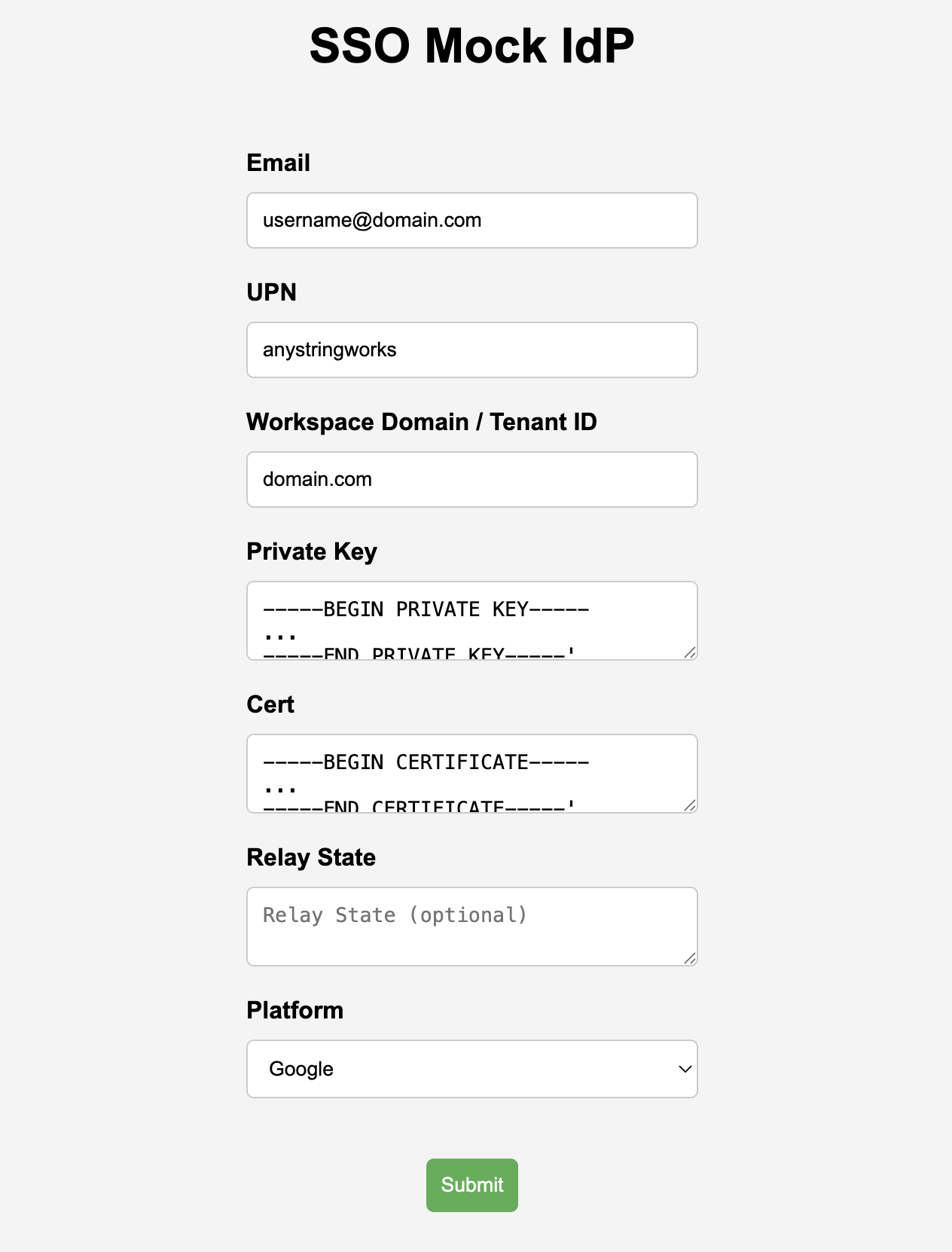
SSO login tool. The values shown are examples; use your Workspace's credentials.
- Open the Google profile in a new tab in the same incognito window.
This signs you in; it does not change your Workspace's SSO settings or grant administrator privileges. Do not share screenshots of the form containing your private key.
Can bots sign in as users from an end user's existing company Google Workspace?
No. This setup requires administrative control of a dedicated bot Workspace and changes to its SSO configuration; it does not connect a customer's existing Google account through individual consent.
Do not apply this configuration to a customer's company Google Workspace: it can disrupt employees' access to Google services. A customer-owned, separate Workspace dedicated to bots must meet the same requirements in this guide.
Which login mode should I use?
only_if_requiredis recommended and only signs in when Google requires authentication when a bot joins a meeting. Otherwise, the bot may join unsigned.alwaysattempts sign-in for every Google Meet meeting using this Google Login Group. Use it for setup tests and when bots should use a Google account identity in every meeting.
Why does Google warn that the bot may not be who it claims to be?
Google can show this identity warning (This person isn't signed in with a Google Account. They might not be who they claim to be) when a bot joins without signing in.
You can implement signed-in Google Meet bots to make the bot sign-in for meetings instead of joining as an anonymous participant.
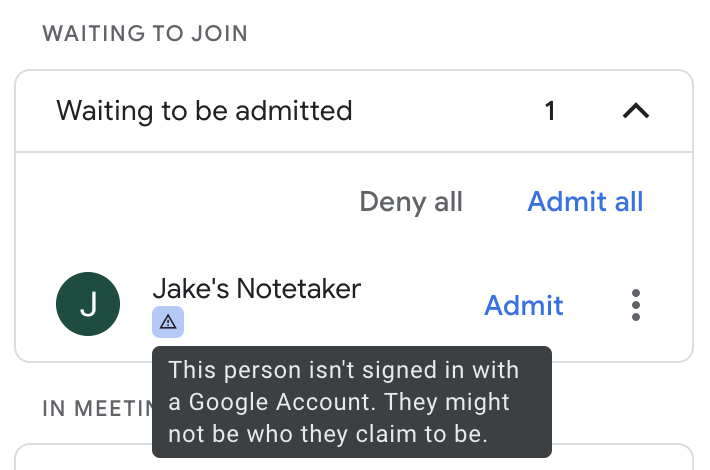
Identity warning for an unsigned participant.
This is different from Google's potential-risk classification, which can still appear for a signed-in bot.
How do I change a signed-in bot's name or profile picture?
Update the Google account's display name or profile picture. Google Meet uses that account's identity and ignores Create Bot's bot_name. If the Login Group contains multiple accounts, update each account that should use the same identity.
How do I add more accounts?
You can add more accounts to an existing login group or create a new login group. For each additional account:
- Create a standard user in the dedicated Google Workspace.
- Confirm it is active, complete any required Google setup or verification, and check its effective Legacy SSO assignment.
- Create a separate Recall Google Login with the user's email, group ID, and Workspace's matching SSO key and certificate.
- Check each Login's status and test the account. A successful sign-in tests only the selected account, not every account in the group.
For testing, you can use different names/profile photos to verify whether the account works.
How many Google accounts do I need?
One Google Login can support 30 concurrent bot sign-ins per Google account (e.g., you can have 30 bots actively in calls sharing the same signed-in account at the same time). This is a platform-level limitation set by Google. We recommend starting with two logins for most developers, where the accounts are not admin users in the Google Workspace.
If a bot reports google_meet_login_not_available, check the intended group's enabled Logins and available account capacity.
Why did a previously working account stop signing in?
Check for changes since the last successful test:
- Was the Google account suspended, disabled, renamed, or given administrator privileges?
- Are you able to sign-in to the bot's Google account?
- Did its effective SSO assignment change, including an inherited organizational-unit or group override?
- Did the primary domain or Recall
sso_v2_workspace_domainchange? - Was a new certificate uploaded to Google without updating the matching Recall credentials?
- Did the bot request, Recall workspace, group ID, or group login mode change?
If you're still encountering issues after working through this list, reach out to [email protected] for additional help troubleshooting.
Why does a signed-in bot still show a Google warning?
Signing in removes the standard unsigned-participant warning, not necessarily Google's separate potential-risk classification. Signed-in bots will not resolve this warning.
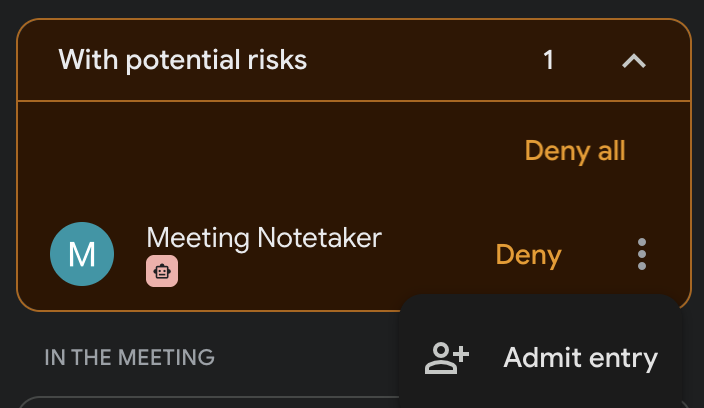
Please reach out to [email protected].
Can I verify bot sign-ins in Google Admin?
Two views can help:
- Users → Last sign in is approximate and can lag by several hours to three days.
- Reporting → Audit and investigation → User log events lets authorized administrators filter by user and time, login type, and event status.
Neither is a complete per-bot record: Google can combine session events and omit some non-browser sign-ins. Legacy SAML can show a failed Google Password event followed by a successful SAML event. Inspect the sequence before concluding that sign-in failed.
See Last sign-in information and User log events.
How do I get the bot to bypass the Google Meet waiting room?
In order for a bot to bypass the waiting room:
- The bot must be signed in to a Google account (following the guide above)
- The email of the account the bot is signed into must be on the underlying calendar event
Tip: Managing multiple loginsIf you're running several google login accounts (for example, if you need to support more than 30 concurrent Meet meetings), we recommend creating a Google group email that each of your bot Google accounts belong to.
The group email can then be added to the calendar event, so you don't need to worry about which Google email must be added to the calendar event.
Updated 9 days ago