

Soniox
Set up Soniox for real-time meeting bot transcription using the legacy v1.10 API.
Important: This guide only applies to workspaces with v1.10 API accessThe v1.10 API is only available to Recall accounts created before May 28, 2025.
Do not use this documentation unless the workspace has access to the v1.10 API. If the workspace creation date is unknown, stop and clarify. All other workspaces must use the v1.11 API documentation instead.
You can use Soniox as a speech-to-text provider for real-time transcription with meeting bots in API v1.10. Soniox post-meeting (asynchronous) transcription is not supported through the legacy v1.10 API.
Setup
Before using Soniox with Recall.ai, you must create a Soniox API key and add it to the Recall.ai dashboard.
- Sign in to the Soniox Console and open the project you want to use for transcription. Note the project's Region and STT WebSocket API hostname. For a regional project, follow Soniox's data residency guide to request region access and create a project in that region.
- Open API keys and select Create API key. Give the key a descriptive name. Use a regular project API key for this integration.
- Turn off Full access. Set Speech-to-text, real-time to Access. Leave Speech-to-text, async and the other permissions at No Access. See Soniox API key permissions.
- Create the key and copy it. Soniox shows the full key only once. Ensure the project has available API credit and quota.
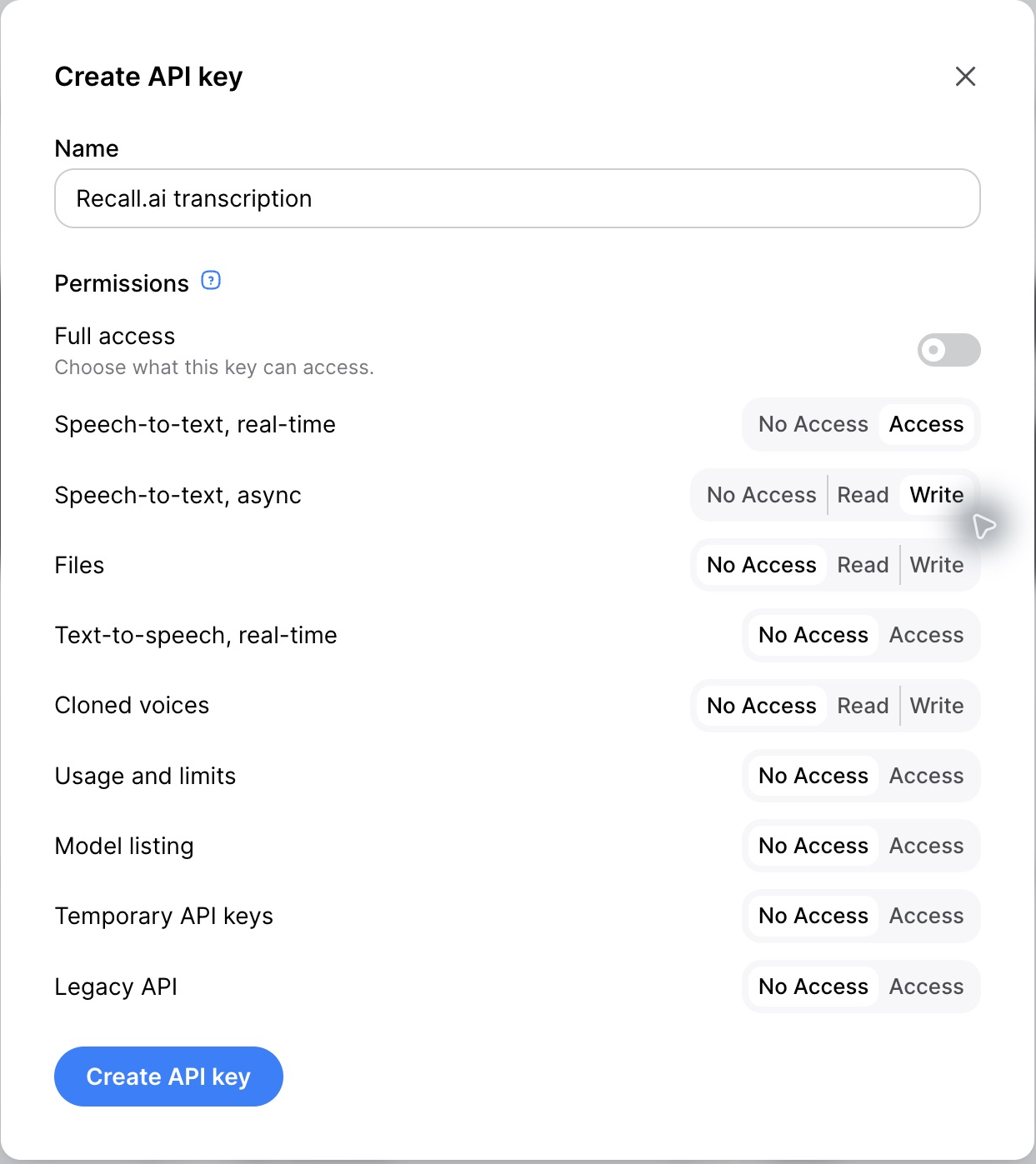
For this v1.10 integration, set Speech-to-text, real-time to Access. The screenshot also shows Speech-to-text, async → Write, which is not needed for this integration; leave that permission at No Access.
Add the key in the Recall.ai dashboard for the Recall region where you create bots:
Paste the key into API Key. Set Streaming Endpoint to match the Soniox project's region, then save:
| Soniox project region | Streaming Endpoint |
|---|---|
| United States (default) | stt-rt.soniox.com |
| European Union | stt-rt.eu.soniox.com |
| Japan | stt-rt.jp.soniox.com |
| India | stt-rt.in.soniox.com |
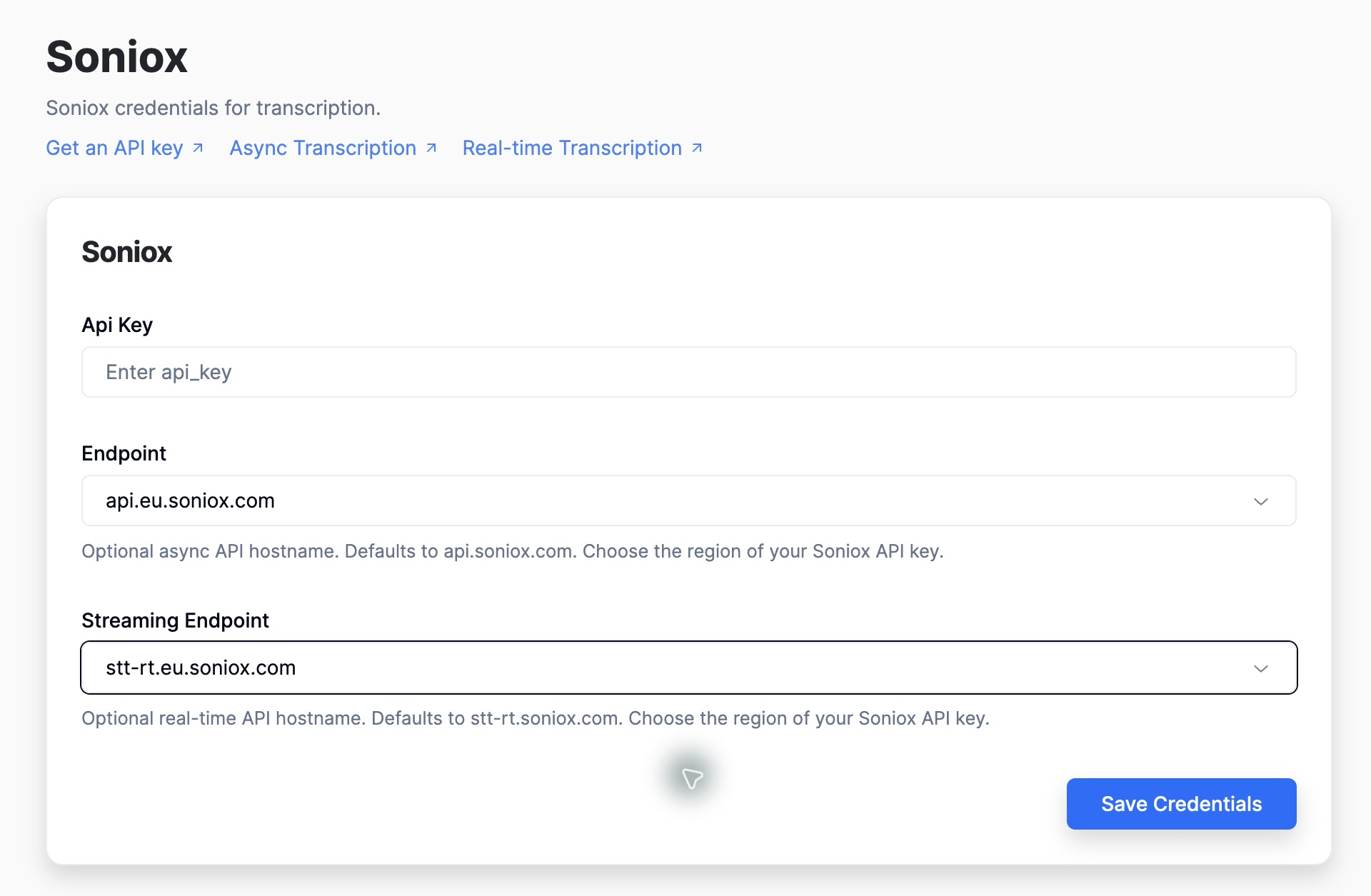
The screenshot shows an EU Soniox project. Configure Streaming Endpoint for this v1.10 integration. The Endpoint field shown is for async transcription and is not used by this workflow.
The Recall.ai region and the Soniox project region are separate settings. Choosing an EU Recall.ai workspace does not automatically select Soniox's EU endpoint. Use the matching Soniox key and hostname. A blank Streaming Endpoint uses Soniox's US endpoint. Recall.ai regions are isolated, so add credentials in each Recall.ai region you use.
Saving credentials does not enable transcription by itself. Select a provider in each API request as shown below. Configure Soniox endpoints in the dashboard, not inside the request's provider settings.
Example Realtime Transcription Request
To use Soniox for real-time transcription, set transcription_options.provider to soniox in the Create Bot request along with your preferred Soniox transcription options:
POST /api/v1/bot/
Content-Type: application/json

{
  "meeting_url": "MEETING_URL",
  "transcription_options": {
    "provider": "soniox",
    "soniox": {
      "model": "stt-rt-v6"
    }
  },
  "real_time_transcription": {
    "destination_url": "https://my-app.com/api/webhook/recall/transcription"
  }
}
See the transcription_options.soniox field on the Create Bot endpoint for the full list of options available.
Real-time transcription generates meeting transcripts in real-time and allows you to consume the transcripts in two ways:
- Receiving real-time transcription webhook events
- Calling the Get Bot Transcript endpoint
Webhooks are completely optional but can be useful for building real-time experiences. Omit real_time_transcription if you do not need webhook delivery. Set real_time_transcription.partial_results to true if you want partial results in addition to finalized results.
Multilingual transcription with Soniox
Soniox supports language detection and code-switching. If language_hints is unset, languages are automatically detected. Set language_hints to the expected languages to guide recognition, and enable_language_identification to true to include language identification in Soniox's output. Use context to supply terminology and context:
POST /api/v1/bot/
Content-Type: application/json

{
  "meeting_url": "MEETING_URL",
  "transcription_options": {
    "provider": "soniox",
    "soniox": {
      "model": "stt-rt-v6",
      "language_hints": [
        "en",
        "es"
      ],
      "enable_language_identification": true,
      "context": {
        "terms": [
          "Recall.ai",
          "Soniox"
        ]
      }
    }
  },
  "real_time_transcription": {
    "destination_url": "https://my-app.com/api/webhook/recall/transcription"
  }
}
FAQ
Do I need to add a Soniox API key in every Recall.ai region?
Yes. Recall.ai regions are isolated, so you must add your Soniox API key in each Recall.ai region where you want to use Soniox transcription.
Which Soniox model should I use?
Use stt-rt-v6 for real-time transcription. See Soniox models for available models and updates.
Can I use Soniox for asynchronous transcription in v1.10?
No. Soniox is supported only for real-time transcription. The Analyze Bot Media endpoint does not expose a Soniox provider. For post-meeting transcription through that endpoint, see Asynchronous Transcription for supported providers.
Why am I getting an authentication or permission error?
Confirm the key belongs to the Soniox project selected for the endpoint region and has the required speech-to-text permission. Check the project's balance and quota. Add the Soniox key in the same Recall.ai workspace and region used by the API request.
Updated about 14 hours ago