

MCP
Overview
Connect Recall.ai to an MCP-compatible AI client so your agent can investigate bots, inspect workspace data, search Recall.ai documentation, and help build or debug your integration.
What You Can Do
Use the Recall.ai MCP server to:
- Investigate why a bot failed to join, record, or produce a transcript.
- Inspect bot lifecycle events, participants, chat messages, and customer-visible logs.
- Trace calendar-created bots and diagnose calendar sync problems.
- Inspect webhook subscriptions, events, and delivery attempts.
- Find recordings, transcripts, and generated media artifacts.
- Check Recall.ai and third-party provider status incidents.
- Search Recall.ai guides and API reference pages
- Review billed usage, credit balances, and configured API rate limits.
- Optionally create or update webhook endpoints, send test webhooks, and submit rate-limit increase requests.
The MCP allows agents to view all the same data that a developer can, without being constrainted to what the API offers.
Quickstart
Find your LLM agent below.
Claude Desktop/Claude Code
-
Head to the Recall.ai connector page
-
Hit the "Connect to Claude" button

Claude Code (terminal)
Alternatively, if you want to add the MCP directly via the terminal:
claude mcp add --scope user --transport http recall-ai https://us-east-1.recall.ai/mcpYou'll then want to login:
claude mcp login recall-aiDevin
-
Open Devin Customize and select Plugins. Choose Personal for your own sessions or Organization to share the plugin with your team.
-
Click Add plugin → From repository.
-
Enter
https://github.com/recallai/devin-recall, leave Subdirectory blank, and click Add.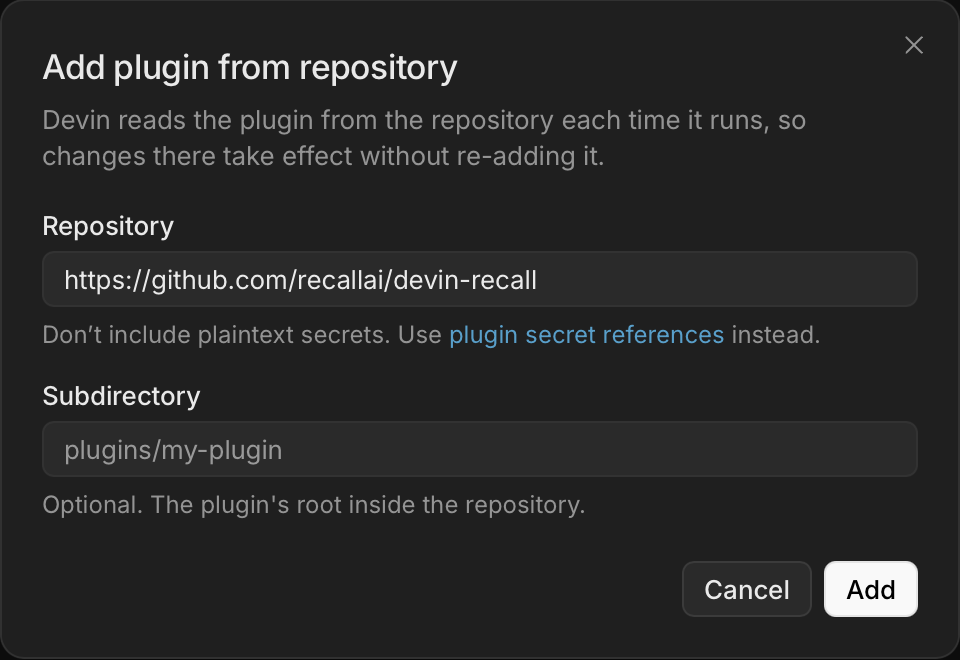
-
After indexing finishes, open MCPs → recall → Connect and sign in to Recall.ai. Start a new Devin session to use the connection.
Codex
codex mcp add recall-ai --url https://us-east-1.recall.ai/mcpThen complete the Recall.ai OAuth flow when prompted.
Cursor
Add the following to ~/.cursor/mcp.json:
{
  "mcpServers": {
    "recall-ai": {
      "url": "https://us-east-1.recall.ai/mcp"
    }
  }
}
Windsurf
Add the following to ~/.codeium/mcp_config.json:
{
  "mcpServers": {
    "recall-ai": {
      "serverUrl": "https://us-east-1.recall.ai/mcp"
    }
  }
}
3. Verify the Connection
Ask your agent:
Use Recall.ai's
get_infotool and tell me the active workspace, organization, and API version. List all the tool calls that the recall-ai MCP supports.
Confirm that the response names the expected workspace before using workspace data or write tools.
Authentication and Workspace Access
Use OAuth when a person is connecting their own AI client. They sign in through the browser, and the connection can access the same Recall.ai billing accounts they can access.
Use a scoped MCP API key for an unattended or shared agent, or when another person should not receive all the access your OAuth connection has. Each key can be limited to one workspace and only the MCP capabilities that person or agent needs.
OAuth
OAuth grants the MCP server access to all billing accounts available to the signed-in user. The workspace selected during authorization becomes the default workspace, but the connection can access the user's other billing accounts and workspaces.
To work with a different workspace:
- Use
list_workspacesto find the desired workspace ID. - Pass that ID as
workspace_idto workspace-scoped tools.
OAuth connections receive read access by default. Write tools require an explicit full or fine-grained write scope.
Scoped MCP API Keys
Create a separate key for each person or agent. This lets you restrict and revoke their access independently.
Create a Key
Create scoped keys from Dashboard → Developers → MCP API Keys in the workspace the agent should access:
- Select New MCP API Key.
- Give the key a descriptive name.
- Choose full read access or specific read permissions.
- Turn off full write access unless the agent needs a write tool.
- If needed, grant only the relevant fine-grained write permission.
- Create the key and copy it immediately to a secure secret store.
An MCP API key:
- Is restricted to the workspace in which it was created.
- Can call only tools allowed by its configured scopes.
- Cannot use the Recall.ai REST API.
- Does not expose tools for scopes it was not granted.
- Has immutable scopes. Revoke and replace the key to change its access.
- Remains active until revoked.
Do not paste an MCP API key into a prompt or commit it to source control.
Authenticate an Agent
Use the MCP endpoint for the region containing the key's workspace:
| Region | MCP URL |
|---|---|
| US East | https://us-east-1.recall.ai/mcp |
| US West | https://us-west-2.recall.ai/mcp |
| Europe | https://eu-central-1.recall.ai/mcp |
| Asia Pacific | https://ap-northeast-1.recall.ai/mcp |
Configure the agent to send the key as a bearer token with every MCP request:
Authorization: Bearer <MCP_API_KEY>Claude Code with an MCP API Key
claude mcp add --scope user --transport http recall-ai https://us-east-1.recall.ai/mcp \
  --header "Authorization: Bearer <MCP_API_KEY>"
Codex with an MCP API Key
Store the key in an environment variable:
export RECALL_MCP_API_KEY='<MCP_API_KEY>'Add the following to ~/.codex/config.toml:
[mcp_servers.recall-ai]
url = "https://us-east-1.recall.ai/mcp"
bearer_token_env_var = "RECALL_MCP_API_KEY"
The MCP API Keys page provides ready-to-copy setup instructions for Cursor, VS Code, Windsurf, Claude Code, Claude Desktop, and Codex.
After connecting, run get_info and confirm that the agent can access only the intended workspace.
Permissions
Read Permissions
mcp.read grants access to every read tool available through MCP. For least-privilege agents, use fine-grained scopes instead:
| Scope | Access |
|---|---|
mcp.account.read | Account, workspace, and billed-usage information |
mcp.bots.read | Bot metadata, status changes, and lifecycle events |
mcp.bot_participants.read | Participant identities and participant events |
mcp.bot_chat.read | Chat messages captured by bots |
mcp.calendars.read | Calendars and synced calendar events |
mcp.calendar_events.raw.read | Raw provider calendar-event payloads |
mcp.docs.read | Recall.ai documentation and API reference search |
mcp.logs.read | Customer-visible bot and workspace logs |
mcp.rate_limits.read | Configured API rate limits |
mcp.recordings.read | Recording metadata and media artifacts |
mcp.status.read | Recall.ai and third-party provider status |
mcp.transcripts.read | Meeting transcripts and speaker timelines |
mcp.webhooks.read | Webhook endpoints and delivery history |
mcp.billing.read | Billing and usage info |
Some tool results contain conditionally protected fields. For example, get_bot requires participant or chat scopes before it returns those fields.
Write Permissions
The server has no write access by default. mcp.write grants every write capability available through MCP. Prefer the fine-grained write scopes for autonomous or shared agents:
| Scope | Tools | External effect |
|---|---|---|
mcp.rate_limits.write | submit_rate_limit_increase_request | Submits a request to Recall.ai support for review |
mcp.webhooks.write | create_webhook_endpoint, update_webhook_endpoint, send_test_webhook_endpoint | Changes dashboard webhook configuration or sends a test event |
Write tools are not shown to credentials that lack the required scope. Your MCP client may also ask for confirmation before running a write tool.
Developer Permissions
Developer permissions are separate from read and write permissions because they can expose or create credentials. Neither mcp.read nor mcp.write grants access to developer tools.
mcp.dev grants every developer capability. For least-privilege agents, use the fine-grained scopes instead:
| Scope | Tools | Access |
|---|---|---|
mcp.dev.credentials.read | get_webhook_verification_secret, list_api_keys | Reads webhook verification secrets and existing API key data. |
mcp.dev.api_keys.create | create_api_key | Creates REST API keys or scoped MCP API keys. |
Grant developer permissions only to trusted people or agents that need to configure an integration. Treat mcp.dev.credentials.read as sensitive even though its tools are read-only.
Available Tools
The Recall.ai MCP server exposes read-only tools scoped to the workspace selected during authorization. If your account can access multiple workspaces, use list_workspaces to find the workspace ID and pass it as workspace_id to workspace-scoped tools.
| Tool Name | Description | Use Case |
|---|---|---|
get_info | Return the current user, workspace, organization, and API version. | Confirm credentials target the intended workspace. |
list_workspaces | List Recall.ai workspaces available to the authenticated account. | Locate the workspace containing a missing recording. |
get_workspace_feature_flags | Return feature flags configured for a workspace. | Confirm whether a workspace feature is enabled. |
list_regions | List Recall.ai regions available to this connection. | Identify the region hosting an accessible workspace. |
get_service_status | Return current customer-visible Recall.ai service status. | Confirm whether a Recall outage affects recordings. |
list_service_incidents | List historical customer-visible Recall.ai status incidents. | Determine whether bot failures matched a Recall incident. |
get_third_party_provider_status | Return current public status for meeting and transcription providers. | Confirm whether provider health is delaying a transcript. |
list_third_party_provider_incidents | List historical public incidents for meeting and transcription providers. | Trace a past meeting failure to a provider incident. |
list_rate_limits | List configured public Recall.ai API rate limits for a workspace. | Explain repeated 429s during bot creation. |
list_bot_usage | List metered bot usage records for a billing account. | Locate bots behind an unexpected usage increase. |
get_billed_usage | Fetch billed usage, commitment consumption, and credit balances. | Reconcile billed hours against remaining commitment. |
submit_rate_limit_increase_request | Submit an API rate-limit increase request for review. | Request capacity for an upcoming bot migration. |
get_webhook_verification_secret | Fetch the workspace webhook verification secret. | Configure signature validation for a webhook receiver. |
list_api_keys | List API keys for a workspace. | Identify keys to rotate after suspected exposure. |
create_api_key | Create a Recall.ai API or MCP API key. | Provision a scoped key for a scheduled integration. |
list_webhook_endpoints | List webhook destinations and subscribed event types. | Confirm transcript.done is subscribed before tracing delivery. |
create_webhook_endpoint | Create a dashboard webhook endpoint. | Add recording notifications for a new application. |
update_webhook_endpoint | Update a dashboard webhook endpoint. | Redirect deliveries after replacing a webhook receiver. |
send_test_webhook_endpoint | Send a test webhook event to a configured endpoint. | Confirm a receiver accepts a test recording event. |
replay_webhook_message | Replay an existing webhook message to an endpoint. | Redeliver an event after repairing the receiver. |
list_webhook_deliveries | List webhook events and delivery attempts for a resource. | Trace why a transcript notification never arrived. |
list_bots | List Recall.ai bots with status, platform, meeting, and metadata filters. | Locate bots created for a specific meeting URL. |
get_bot_batch | Fetch detailed information for multiple bots. | Compare lifecycle evidence across failed meeting bots. |
get_bot | Fetch bot metadata, lifecycle events, participants, and chat. | Explain why a bot left a meeting early. |
list_recordings | List recordings by bot, upload, metadata, status, or time. | Locate recordings created by a desktop upload. |
list_audio_mixed | List generated mixed-audio artifacts and their statuses. | Confirm whether mixed audio completed for a recording. |
get_recording_resource | Fetch recording or transcript artifact details by ID. | Locate the recording linked to a transcript artifact. |
list_calendars | List calendar integrations by email, platform, and connection status. | Locate a disconnected calendar for a user's email. |
get_calendar | Fetch details for a single calendar integration. | Explain a calendar connection state after sync failures. |
get_calendar_integration_setup_status | Return calendar setup readiness, recommendations, and blockers. | Explain what is blocking calendar integration setup. |
start_calendar_integration_setup | Start an assisted calendar integration setup. | Begin guided setup for a work calendar. |
get_calendar_integration_setup | Fetch progress for a calendar integration setup. | Identify the next action needed for calendar setup. |
continue_calendar_integration_setup | Continue a calendar setup with the next required action. | Advance setup after providing calendar configuration. |
create_calendar_v2 | Create a Calendar V2 integration with supplied credentials. | Provision a calendar during automated onboarding. |
update_calendar_v2 | Update a Calendar V2 integration's credentials, webhook URL, email hint, or metadata. | Replace expired calendar credentials without recreating it. |
reconnect_calendar_v2 | Reconnect a disconnected Calendar V2 integration. | Restore calendar syncing after credential repair. |
list_calendar_events | List synced calendar events by calendar, time, and deletion state. | Locate invitations expected to schedule bots. |
get_calendar_event | Fetch details for a single synced calendar event. | Explain why an invitation did not schedule a bot. |
get_bot_calendar_events | Return the calendar events that scheduled a bot. | Trace a bot to its scheduling invitation. |
get_bot_logs | Fetch customer-visible runtime logs for a bot. | Explain why a bot failed to join or record. |
get_desktop_sdk_logs | Fetch customer-visible runtime logs for a desktop upload. | Explain why a desktop upload failed. |
get_workspace_logs | Fetch customer-visible workspace logs within a time window. | Trace API 429s during a high-volume launch. |
list_docs | List Recall.ai documentation and API reference pages. | Locate the slug for a calendar integration guide. |
search_docs | Search Recall.ai documentation and API reference pages. | Find guidance for a specific endpoint error. |
get_doc | Fetch a Recall.ai documentation page by slug. | Summarize requirements for a known API endpoint. |
Example Workflows
Investigate a Failed Bot
Prompt your agent:
Why did bot
<BOT_ID>fail? Use its status changes and customer-visible logs, explain the causal chain, and link the relevant Recall.ai documentation.
The agent can use get_bot, get_bot_logs, search_docs, and get_doc. If the available evidence does not establish a cause, the response should say what is known and what evidence is still missing.
Trace a Missing Webhook
Prompt your agent:
Why did we not receive
transcript.donefor recording<RECORDING_ID>? Check our subscriptions and delivery attempts.
The agent can use list_webhook_endpoints and list_webhook_deliveries to distinguish a missing subscription from a failed delivery.
Trace a Calendar-Created Bot
Prompt your agent:
Which calendar event scheduled bot
<BOT_ID>, and what was the calendar's connection state?
The agent can use get_bot_calendar_events and get_calendar.
Configure a Webhook
With mcp.webhooks.write, prompt your agent:
Create a webhook endpoint for
recording.doneat<WEBHOOK_URL>. Show me the proposed change and ask for confirmation before creating it.
The agent can use create_webhook_endpoint after you confirm the destination and event subscription.
Search Recall.ai Documentation
Prompt your agent:
Find the current Recall.ai documentation for creating a meeting bot and summarize the required request fields for this workspace's API version.
The agent can use search_docs followed by get_doc.
Updated about 10 hours ago